
Email delivery troubleshooting is the process of finding out where a message failed to send and fixing the cause. The receiving server deferred it, rejected it, or accepted it and filtered it somewhere you can't see, and each of those needs a different fix. The full SMTP response, plus any failure notice that arrives later, is how you tell them apart.
You're probably here because a client called. Their newsletter showed up hours late, or half of it bounced with a code nobody on the team recognized, and now you're the one who has to explain it.
The steps below work whether you send for one brand or forty.
Key Takeaways
Read the full SMTP response first: Email delivery troubleshooting starts with the complete code, not a one-word dashboard status. A reply code of 5.7.515 tells you Microsoft rejected the message for failing its authentication requirements, while a 4xx code means the receiving server wants a retry.
Know the bulk sender threshold: Gmail and Microsoft both enforce stricter rules once a domain sends about 5,000 messages a day, and Gmail's bulk sender status is permanent once you reach it, even if volume later drops.
Keep your spam rate under 0.1%: Google recommends staying below 0.1% and never letting your spam rate reach 0.3%, since a rate that looks unusually low can mean a lot of your mail is being filtered to spam before anyone sees it.
Microsoft enforces 550 5.7.515 since May 5, 2025: Outlook.com rejects mail from domains sending more than 5,000 emails a day that don't pass SPF and DKIM with an aligned DMARC result, which answers why is my email being blocked for a lot of high-volume senders.
Separate client domains to speed up attribution: Gmail rolls subdomain volume up to the parent domain, so agencies sending multiple clients from subdomains of one domain get treated as a single sender, one reason why emails take so long to arrive or get blocked can trace back to a different client entirely.
In this guide
- What Email Delivery Troubleshooting Covers
- How to Troubleshoot Email Delivery Step by Step
- Why Do Emails Take So Long to Arrive
- Why Is My Email Being Blocked
- What Gmail, Outlook.com, and Yahoo Require From Bulk Senders
- Troubleshooting Delivery When You Send for Many Clients
- Frequently Asked Questions
What Email Delivery Troubleshooting Covers
The most common delivery problems come in three types. The receiving server can defer the message and ask you to try later, reject it outright, or accept it and then decide where it lands. Each one gets fixed differently, so the first job is figuring out which deliverability issue you have.
It's also worth keeping in mind as you work through this that email deliverability itself is judged on more than just your authentication setup these days, which is part of why the same technical fix can behave differently from one provider to the next.
Delivery and deliverability are different problems
Delivery means the receiving mail server accepted your message, and deliverability is whether it then reached the inbox instead of the spam folder. A campaign can post a near-perfect delivery rate and still have a deliverability problem, because accepted and seen are two separate events.
That distinction matters the moment a client says their email "didn't go through." If your logs show the message was accepted, the investigation moves downstream.
A server that accepts a message can still report a delivery failure later, so keep watching for late failure notices while you check quarantine, spam filtering, and the recipient's mailbox rules.
Delayed, rejected, and filtered mail need different fixes
SMTP reply codes follow a simple rule. A first digit of 2 means success, 4 means a temporary failure, and 5 means a permanent failure for that attempt. Delayed mail usually lives in the 4 range while your server retries.
Rejected mail comes back with a 5. Filtered mail often shows no error at all, which makes it the hardest of the three to spot.
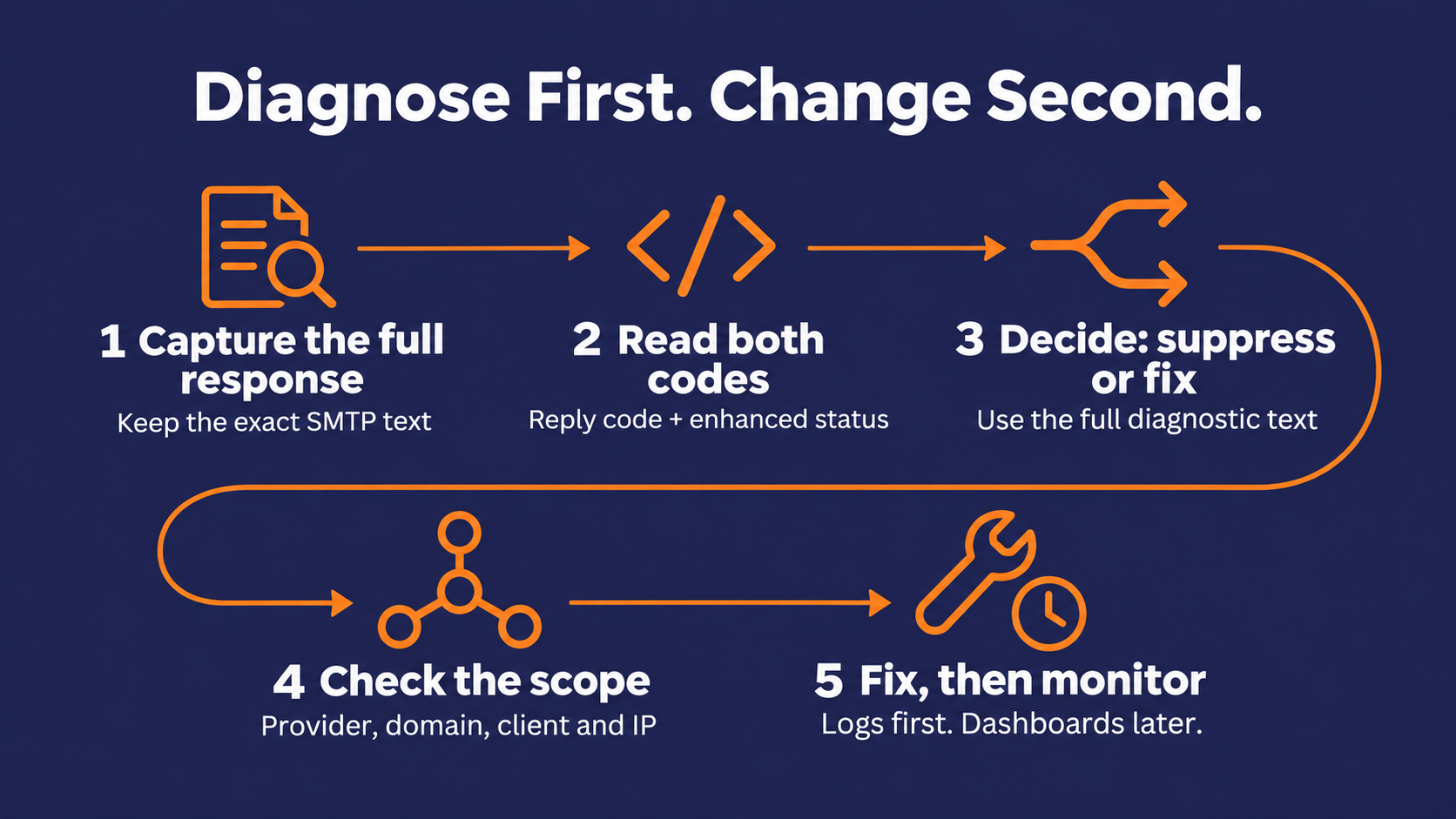
How to Troubleshoot Email Delivery Step by Step
Run these steps in order before you touch DNS, swap IPs, or rewrite the campaign. Fixing the wrong thing first is how a one-hour problem turns into a three-day one.
Step 1: Capture the full SMTP response
Pull the raw bounce or deferral text from your sending logs, not the one-word status your dashboard shows. A status like "Bounced" tells you almost nothing.
The full response is what you act on, because a reply code alone doesn't settle whether a message has finally failed or what to do next.
Keep the exact wording too. Providers often add text after the codes, and that text frequently names the actual cause.
Step 2: Read the reply code and the enhanced code
The first digit of the reply code tells you whether the receiving server wants a retry. The enhanced status code adds precision in a class.subject.detail format, such as 5.7.1, and its middle digit names the category of the problem.
| Middle digit | Category | Where to look first |
|---|---|---|
| 0 | Other or undefined | The text after the code |
| 1 | Addressing | The sender or recipient address |
| 2 | Mailbox | The recipient's mailbox |
| 3 | Mail system | The receiving mail system |
| 4 | Network or routing | The connection between servers |
| 5 | Mail delivery protocol | The SMTP conversation itself |
| 6 | Message content | The message you sent |
| 7 | Security or policy | Authentication, reputation, or the receiver's policy |
That middle digit is the fastest triage you have. A 1 points at an address, yours or the recipient's. A 7 points at an authentication or policy refusal.
Step 3: Decide whether to suppress or fix
A 4xx response is a temporary failure meant to be retried, and on its own it doesn't prove the message will never arrive. A 5xx is a different animal. After a 5xx response, investigate the diagnostic text rather than automatically retrying the same request, and let the enhanced code decide what you do next.
Read the complete enhanced code and the diagnostic text before you suppress anyone. A confirmed bad destination mailbox, 5.1.1, warrants suppression, but other 5.1.x codes can point to problems with your own sender address. A 5.7.x is a security or policy refusal, so investigate the cause before deciding whether that recipient stays on the list.
Good email list hygiene keeps this step from piling up in the first place, since a list with fewer dead addresses produces fewer ambiguous bounces to sort through.
Pro Tip: Sort hard bounces by their full enhanced code before you run any suppression. Suppress the 5.1.1s, then send the 5.1.x sender-address errors and the 5.7.x policy refusals to whoever owns your sending setup.
Step 4: Check how far the problem spreads
Before you change anything, map the scale of the issue. Is it one mailbox provider or all of them, one sending domain or several, one client or every client on the same IP?
The answer tells you where to look. Microsoft's Smart Network Data Services reports by IP address, while Google's Postmaster Tools covers mail you send to personal Gmail accounts, so a problem that shows up in only one of them already narrows the search.
Step 5: Fix the cause, then let the data catch up
Google's Compliance status dashboard isn't real-time. It typically updates within 24 hours, and a fix can take up to 7 days to show.
Microsoft's SNDS IP status page is current as of the last 24 hours, with no history.
If you change DNS on Monday and the dashboard still says "needs work" on Tuesday, that's normal. Watch the bounce log for proof first, and let the dashboards confirm it later.

Why Do Emails Take So Long to Arrive
A late email is often one the receiving server asked you to resend later. The message sits in your queue, your server tries again on its own schedule, and the recipient sees it whenever a retry finally lands. Here are three causes worth investigating.
Greylisting slows down unfamiliar senders
A properly configured mail server does retry, and the message may get through on a later attempt. At receivers that use greylisting, an unfamiliar sending identity can see an initial delivery delay.
A retry isn't guaranteed to work either. RFC 6647 notes that if the retry reaches a different server than the first attempt, or the receiver's record has expired, legitimate mail can be delayed more than once.
Rate limits catch senders who push too fast
When Gmail sees a domain or IP sending at a suspiciously high rate, it temporarily limits the sending rate, and Google's advice is to stop sending immediately, then resume at a constant rate rather than a varying one. Your server may queue the message for retry, but delivery isn't guaranteed before its retry window runs out.
A slow, deliberate email IP warm up schedule is the standard way to avoid tripping these limits in the first place.
Your retry schedule decides how long the delay lasts
Google describes temporary failures as a throttling tool and recommends exponential backoff, retrying at growing intervals after a short full stop, then sending at a slower rate. It also warns that senders who keep pushing after temp fails should expect a period of permanent failures.
So a delay you ignore today can turn into a block next week.
Why Is My Email Being Blocked
A block is the receiving server refusing your message on purpose. The upside is that blocks usually come with a reason attached, and the reasons fall into a short list.
Authentication and alignment failures
DMARC passes when at least one authentication method, SPF or DKIM, passes and its domain aligns with the domain in the visible From line. SPF and DKIM can each pass on their own while DMARC still fails, because neither passing result lines up with your From domain.
This trips up agencies constantly. If the sending service signs DKIM with its own domain while the From line shows the client's, DKIM won't align, and DMARC then depends on SPF passing for an aligned domain. Check both before you assume either one is covering you.
Why last year's SPF, DKIM, and DMARC setup may no longer hold
Microsoft enforces this strictly. Since May 5, 2025, domains sending more than 5,000 emails a day to Outlook.com, Hotmail.com, and Live.com addresses must pass both SPF and DKIM, publish a DMARC record of at least p=none, and pass DMARC through an aligned SPF or DKIM result. Non-compliant mail is rejected with 550 5.7.515.
If your domain publishes a DMARC policy of reject and a message fails, Gmail rejects it under that policy. Google suggests reading your DMARC reports to tell a spoofing attempt from a real gap in your own setup. If you want the fuller picture of what's changed across SPF, DKIM, and DMARC requirements recently, it's worth reading up on before you assume last year's setup still holds.
Low IP or domain reputation
When Gmail flags very low reputation, its advice depends on which one is flagged. For a low-reputation IP, Google suggests improving reputation and sending from other IPs.
For a low-reputation domain, it points to improving domain reputation, and in both cases to its bulk sender escalation form if the problem persists while you're meeting the sender guidelines.
Switching IPs alone does not resolve poor domain reputation. Reputation is built from how your mail behaves over time, so there's rarely a same-day fix.
Upgrading your sending setup and winning back cold subscribers
Sometimes the fastest fix is a different sending setup. Hallmark Building Supply ran into recurring ISP blocking on its previous overseas ESP. After moving its sending to Pinpointe, the company reported in its case study that the blocking stopped, and separately cut its opt-out rate to under 0.01%.
Running targeted re-engagement campaigns against your least-active segments is one of the more reliable ways to rebuild reputation once it has slipped, since it directly lowers the bounce and complaint signals providers are watching.
Blocklist listings
Gmail treats a listing on a public blocklist as its own delivery error, and its advice is to contact the organization that listed you and ask for removal.
The Spamhaus Block List works differently from the rest. Only the network owner or ISP that controls the listed IP space can request removal, and only after the cause is fixed. On a provider-owned IP, that means your ESP files the request.
Pro Tip: If the checker shows an SBL listing, open a ticket with whoever owns the IP, usually your ESP, before you do anything else. Send them the listing details and a short note on what you've already fixed.
Missing PTR records and spammy content
Gmail also flags IPs with a bad or missing PTR record, the reverse-DNS entry that ties an IP back to a hostname, and its fix is to check with the Google Admin Toolbox Dig tool and add one if it's missing.
Content filters catch legitimate senders as well. Coastal Insurance Underwriters says standard insurance terminology has triggered spam-filter false positives for it, yet its case study reports a 96% to 99% inbox deliverability rate across more than five and a half years on Pinpointe, sending from ReturnPath-certified dedicated IPs.
A quick reference for common block signals
Gmail's Postmaster Tools lists the first six below as delivery error reasons. The last row is the bounce Microsoft returns.
| Signal | What it means | First move |
|---|---|---|
| Gmail, DMARC policy of the sender domain | The message failed DMARC and your domain publishes a reject policy | Read DMARC reports, then fix SPF or DKIM alignment |
| Gmail, sending IP has a low reputation | The IP's reputation is very low | Improve reputation or send from other IPs, then use Google's escalation form if it persists |
| Gmail, sending domain has a low reputation | The domain's reputation is very low | Improve domain reputation, then use Google's escalation form if it persists |
| Gmail, domain or IP is in one or more public RBLs | You're on a public blocklist | Contact the list operator to request removal |
| Gmail, bad or missing PTR record | The sending IP has no valid reverse DNS | Add a PTR record |
| Gmail, suspected spam or possibly spammy content | Gmail judged the message as likely spam | Check reputation, then review links and content |
| Outlook.com, 550 5.7.515 | The domain doesn't meet Microsoft's high-volume authentication rules | Get SPF and DKIM passing, publish DMARC, and make sure an aligned result passes DMARC |

What Gmail, Outlook.com, and Yahoo Require From Bulk Senders
All three big consumer providers now enforce sender requirements, and each draws the lines differently. If a client's mail breaks at one provider and not the others, the difference in rules is a good place to start.
Gmail
Google treats any sender that sends about 5,000 or more messages to personal Gmail accounts in a 24-hour period as a bulk sender, and that status is permanent once you reach it.
Google says to keep your spam rate below 0.1% and never let it reach 0.3%. Here's the part worth being precise about. Google warns that if Gmail sends a lot of your mail straight to spam, the dashboard rate can look low, because fewer of your messages reach the inbox where people report them
Decoding rejections with Postmaster Tools' deliverability analysis
A suspiciously clean spam rate on a struggling domain deserves a second look.
Enforcement has been gradual, and since the November 2025 ramp, non-compliant bulk traffic can get both temporary and permanent rejections.
Postmaster Tools' Deliverability analysis tool flags when you send too little, when messages fail, when you cross the spam threshold, or when recipients aren't engaging.
Outlook.com
Microsoft's requirements apply to domains sending more than 5,000 emails a day to its consumer addresses, and failing them returns 550 5.7.515. The authentication rules are the ones covered in the blocking section above.
For visibility, Microsoft's Smart Network Data Services shows each of your IPs' filter results as green, yellow, or red, along with a complaint rate, and Microsoft calls a complaint rate under 0.3% a good bar to aim for. Its IP status page flags IPs as Blocked, Bot, or Junked, and a Junked IP can end up Blocked if nothing changes.
SNDS access requires authorization for the IP range, either directly or through delegated access from someone authorized for it. On a shared or provider-owned IP, you may need your ESP to grant access or pull that data for you.
Yahoo
Yahoo doesn't publish a volume threshold. It defines a bulk sender as one sending a significant volume of mail and evaluates senders at the authenticated domain or From domain level.
For those bulk senders, one-click unsubscribe is required for promotional and marketing mail, unsubscribes must be honored within two days, and mail that misses the requirements may go to spam or be rejected with a specific error code.

Troubleshooting Delivery When You Send for Many Clients
Agencies get a problem single-brand senders don't. When something breaks, you first have to work out whose mail broke it, and the provider rules don't always make that easy.
Bulk-sender status follows the domain, subdomains included
Google counts subdomain mail toward the primary domain. Its own example adds 2,500 daily messages from solarmora.com to 2,500 from promotions.solarmora.com and treats the total as solarmora.com's volume.
Yahoo describes its evaluation at the authenticated domain or From domain level and doesn't give the same subdomain example.
If clients send from subdomains of your agency's domain, Gmail sees one sender, and that sender is you. Google's Compliance status dashboard also reports status for the primary domain only, even though it uses subdomain data to calculate it, so one client's problem lands on your record.
Pro Tip: Send each client's mail from that client's own authenticated domain, not a subdomain of yours. Gmail rolls subdomain volume up to the parent domain, so every client subdomain under your domain counts as you.
Shared infrastructure blends the signals
SNDS reports by IP address, so if several clients send from the same IP, what you see is their combined traffic. The reputation of that IP is shared the same way.
Separate client domains make a problem much easier to trace. They don't wall off an IP that everyone is sending through.
Separate client accounts speed up the diagnosis
When each client's data, lists, and sending live in their own space, you can check one client's bounces and complaints without untangling everyone else's.
Mudd Advertising works at serious scale. The agency served more than 5,000 car dealerships, kept each client's database separate for management and reporting, and pushed results from 2 to 2.5 million monthly sends into its own Salesforce dashboards through Pinpointe's open API.
Make Email Delivery Troubleshooting Faster Across Every Client
Email delivery troubleshooting gets faster once you stop guessing. The full SMTP response tells you whether you're facing a delay, a bad address, or a policy block. Deferrals call for retries and investigation, and rate-limit deferrals also call for slowing down.
Blocks call for fixing authentication, reputation, or a listing, and each provider's dashboard confirms the fix on its own timeline.
For agencies, the extra step is attribution. Reading a bounce takes minutes. Working out which client's traffic caused it can eat an afternoon.
Proactive domain setup, pre-send checks, and segregated accounts
Pinpointe's enterprise platform gives each client its own brand account, with its own sender identities and sending domains, and every sending domain is authenticated through DNS and verified before use.
Your team works from one admin login that sees every client, while each client sees only its own account. When a problem shows up, you start in one client's data instead of everyone's.
Proactive setup and clearer root-cause troubleshooting
We also handle the setup that prevents a lot of these tickets. Our onboarding team configures SPF, DKIM, and DMARC with you, checks list hygiene, and runs a controlled warm-up.
Before you send, you can run our Spam Checker to score the message and Link Checker to test its links, and global, per-database, and temporary suppression lists keep known-bad addresses out.
Separate accounts won't change how a shared IP's reputation works. They do make it obvious which client to look at first.
See how per-client sending works in a live demo
If your agency is chasing these problems across a growing client list, book a live demo with our team. It's a 1-on-1 walkthrough built around your goals, covering how sending domains, authentication, segmentation, and deliverability are set up across client accounts, so you can judge whether it fits the way you work.

Frequently Asked Questions
A few quick answers to the questions that come up most once a client's email starts acting up.
What is the difference between a delayed email and a bounced email?
A delayed message is still awaiting delivery, often after a temporary 4xx failure or a connection problem, while a final bounce means delivery failed, either right away or after retries ran out. Delayed mail can still arrive. A final bounce means delivery attempts have ended for that message, so investigate the cause before sending again.
How do I check if my domain is on a blocklist?
Run your IP and domain through Spamhaus's free reputation checker, which shows whether you're on a Spamhaus list, which one, and how to request removal. It only covers Spamhaus lists. If Gmail's Postmaster Tools shows a public blocklist delivery error, contact the organization that listed you.
What spam rate does Gmail allow?
Google says to keep your spam rate below 0.1% and never let it reach 0.3%. Its dashboard rate only counts reports on mail that reached the inbox, so a very low number can mean Gmail is filtering your mail to spam before anyone sees it.
What does 550 5.7.515 mean?
It's Microsoft's rejection for domains sending more than 5,000 emails a day to Outlook.com, Hotmail.com, and Live.com addresses that don't meet its authentication requirements. Fix it by getting SPF and DKIM passing, publishing a DMARC record, and making sure an aligned SPF or DKIM result passes DMARC.
Does a delivered email always reach the inbox?
No. Delivery only means the receiving server accepted the message, and deliverability is whether it then reached the inbox rather than the spam folder.