

API - Update Content Blocks Paid Members Public
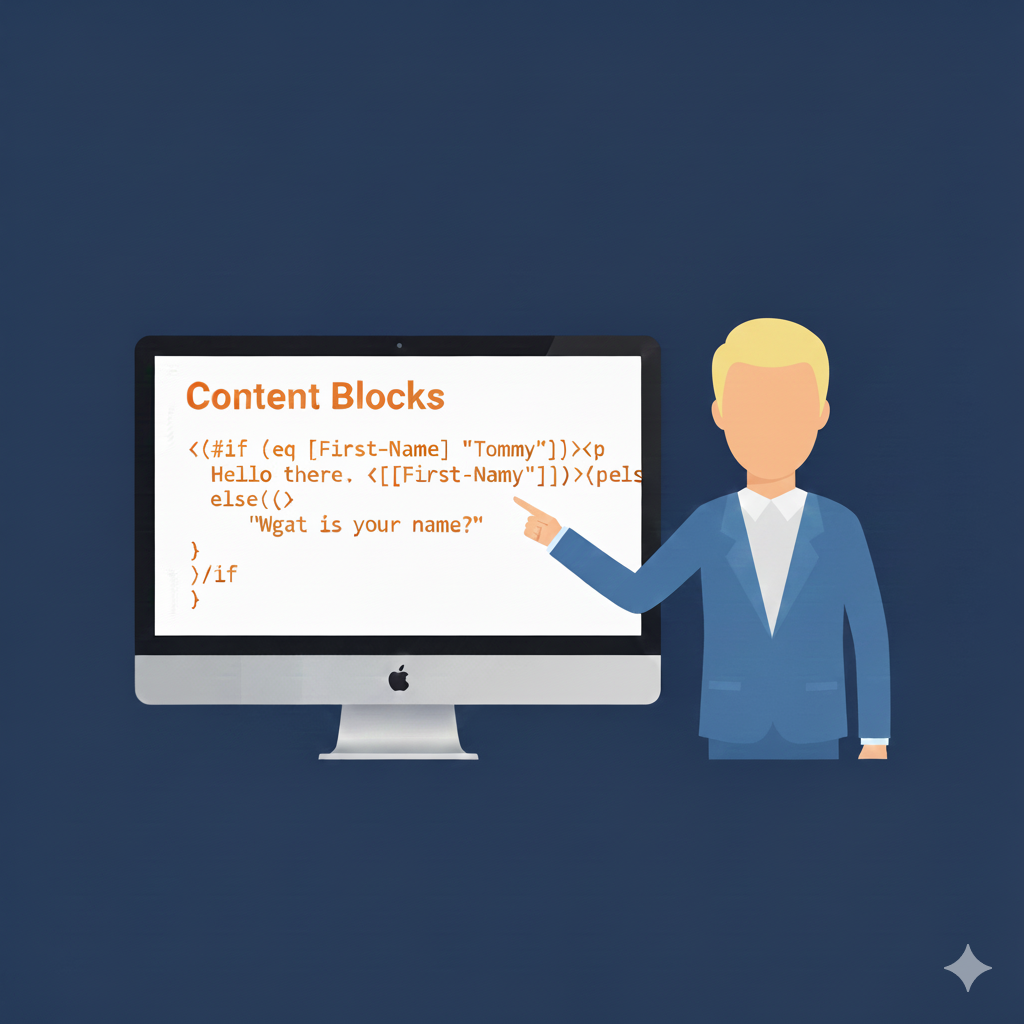
This API updates content blocks. Note: If you are editing a more complex Content Block in the content field that requires double quotes in it, they must be entered and exited with a backslash Example: content: "{{#if (eq [First-Name] \"Tommy\")}}<p>Hello there. {{[First-Name]}}<

API - Get Content Blocks Paid Members Public
Returns a list of content blocks. { "//DOC": [ "ContentBlock::Debug", "", "Return a list of content blocks." ], "username": "matbt@pinpointe.com", "usertoken": "XXX", "requesttype": "ContentBlock", "requestmethod": "GetContentBlocks", "

API - Delete Content Blocks Paid Members Public
This API deletes content blocks. { "//DOC": [ "ContentBlock::DeleteContentBlock", "", "Delete a content block.", "", " id [int, required]: content block id" ], "username": "johnsmith@pinpointe.com", "usertoken": "XXX", "requesttype": "ContentBlock"

API - Create Content Blocks Paid Members Public
Note: If you are entering a more complex Content Block in the content field that requires double quotes in it, they must be entered and exited with a backslash Example: content: "{{#if (eq [First-Name] "Tommy")}}Hello there. {{[First-Name]}}{{else}}What is your name?{{/if}}" { "//DOC&

Content Blocks - Inserting the Content Block with the Basic Editor Paid Members Public
In the Basic Editor, you can type in the Content Block with the same "{{> [name of block'}}" formatting (Fig 1). Fig 1 When receiving emails sent from campaigns using Content Blocks from the Basic Editor, the result is the same as when doing so from the

Content Blocks - Inserting Content Blocks with the DND Builder Paid Members Public
In your Email Campaign, add a Text Widget and type in the Content Block in the text widget. In our example, we're adding our Content Block Name by typing "Hi {{> [Name]}}," After sending out the Email Campaign, this populates the beginning of the email with
Content Blocks - Creating Content Blocks Paid Members Public
Content Blocks allow you to reuse content, including handlebars, for multiple email campaigns. Before you can add Content Blocks to your Email Campaign, we'll need to create some Content Blocks. Creating Content Blocks On the left navigation menu, go to Resources -> Content Blocks (Fig 1). Fig

Handlebars - Nesting Helpers Paid Members Public
Nesting Helpers allow you to compare values in the following ways: * Nesting or Helpers - Create fallback chains by nesting multiple or helpers * Example: <!– Triple fallback --> {{or [Preferred-Name] (or [First-Name] "Friend")}} <!-- Even more complex --> {{or [Nickname] (or [Display-Name] (or [First-Name] "
