What Is an Email Autoresponder? Types, Setup, and a Template October 23, 2026 An email autoresponder is an automated email, or a short series of them, that... Read More
Event Confirmation Email Guide With 3 Templates You Can Adapt October 20, 2026 An event confirmation email is the automatic message someone receives right... Read More
Lead Nurturing Emails That Move B2B Leads Toward Sales October 15, 2026 Lead nurturing emails are a sequenced series of targeted messages sent to... Read More
Email Retargeting Explained, From Trigger to Inbox October 14, 2026 Email retargeting is the practice of sending a targeted follow-up email to... Read More
Best Email Marketing Tools 2026 by Use Case October 12, 2026 Email marketing tools are software platforms that let businesses build, send,... Read More
Email Lead Scoring Guide for B2B Marketers October 9, 2026 Email lead scoring assigns points to what a contact does with your emails, such... Read More
How to Write a Warm Follow-Up Email That Gets a Reply October 6, 2026 A warm follow-up email is a message to someone you already have a connection... Read More
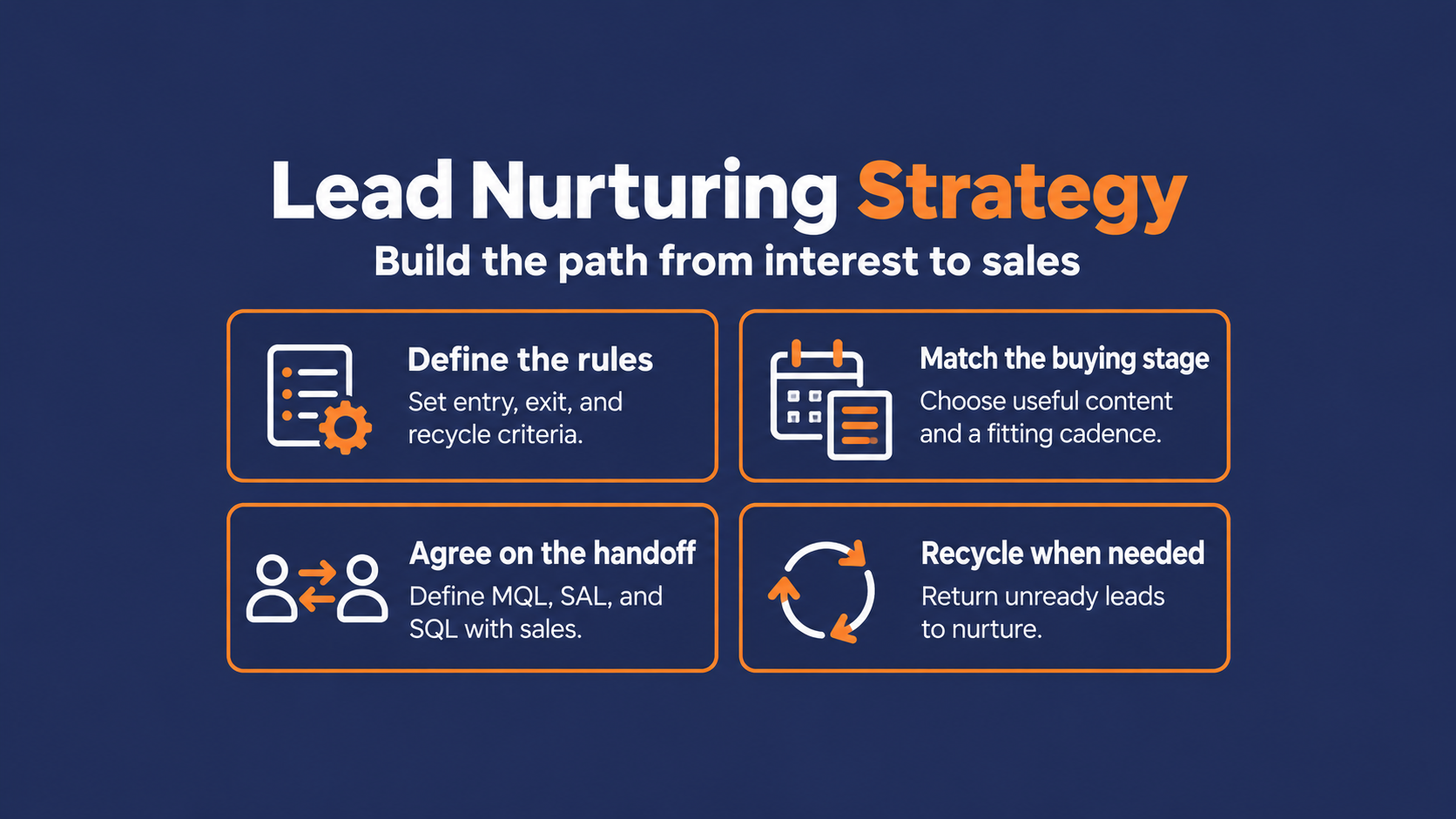
How to Build a Lead Nurturing Strategy That Moves Leads to Sales October 2, 2026 A lead nurturing strategy is your plan for staying useful to leads who aren't... Read More
How Social Media and Email Marketing Work Together October 1, 2026 Social media and email marketing work best as a loop. Social media marketing... Read More
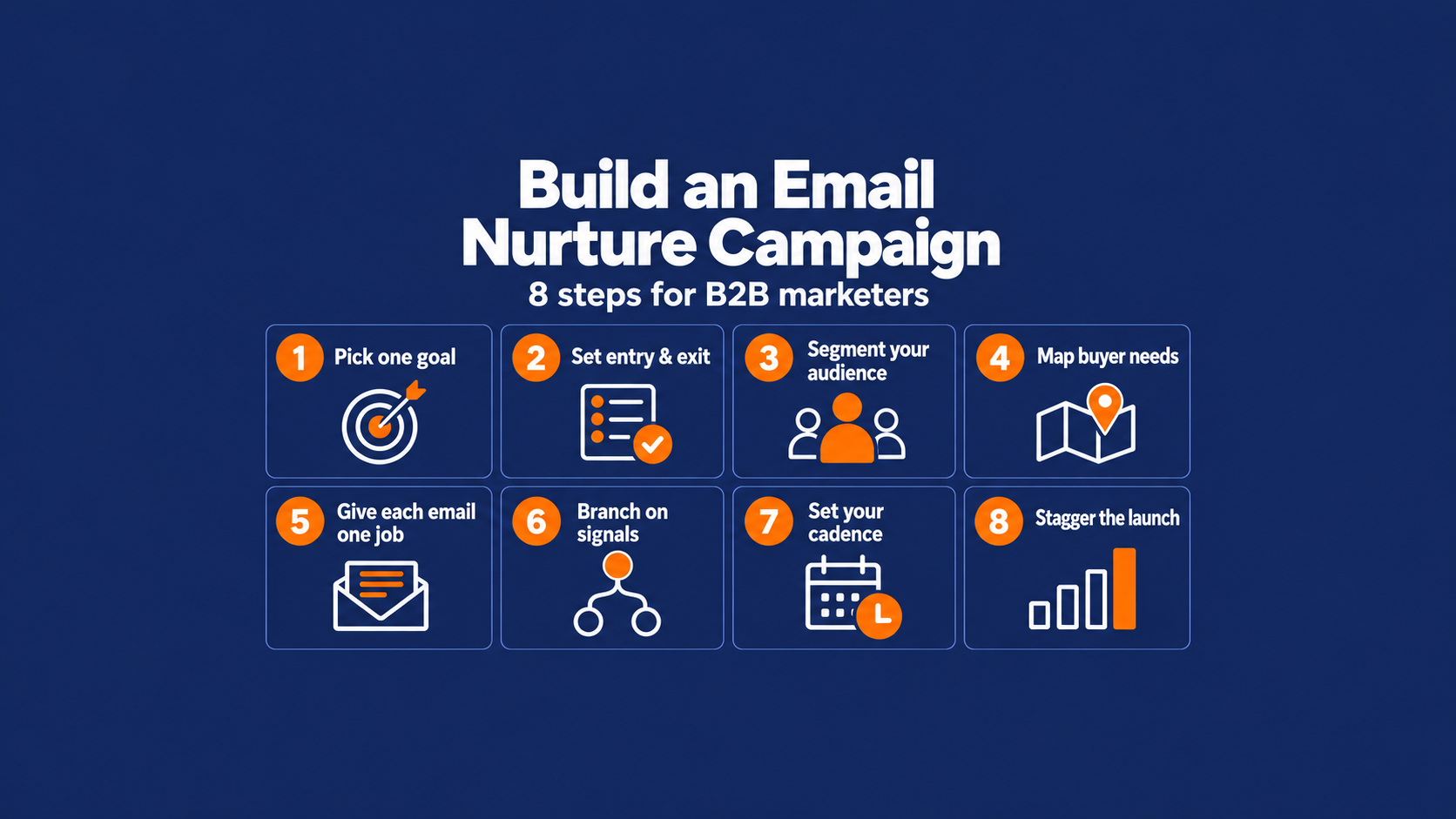
Email Nurture Campaign Guide for B2B Marketers October 1, 2026 An email nurture campaign is a planned series of emails that keeps a lead... Read More
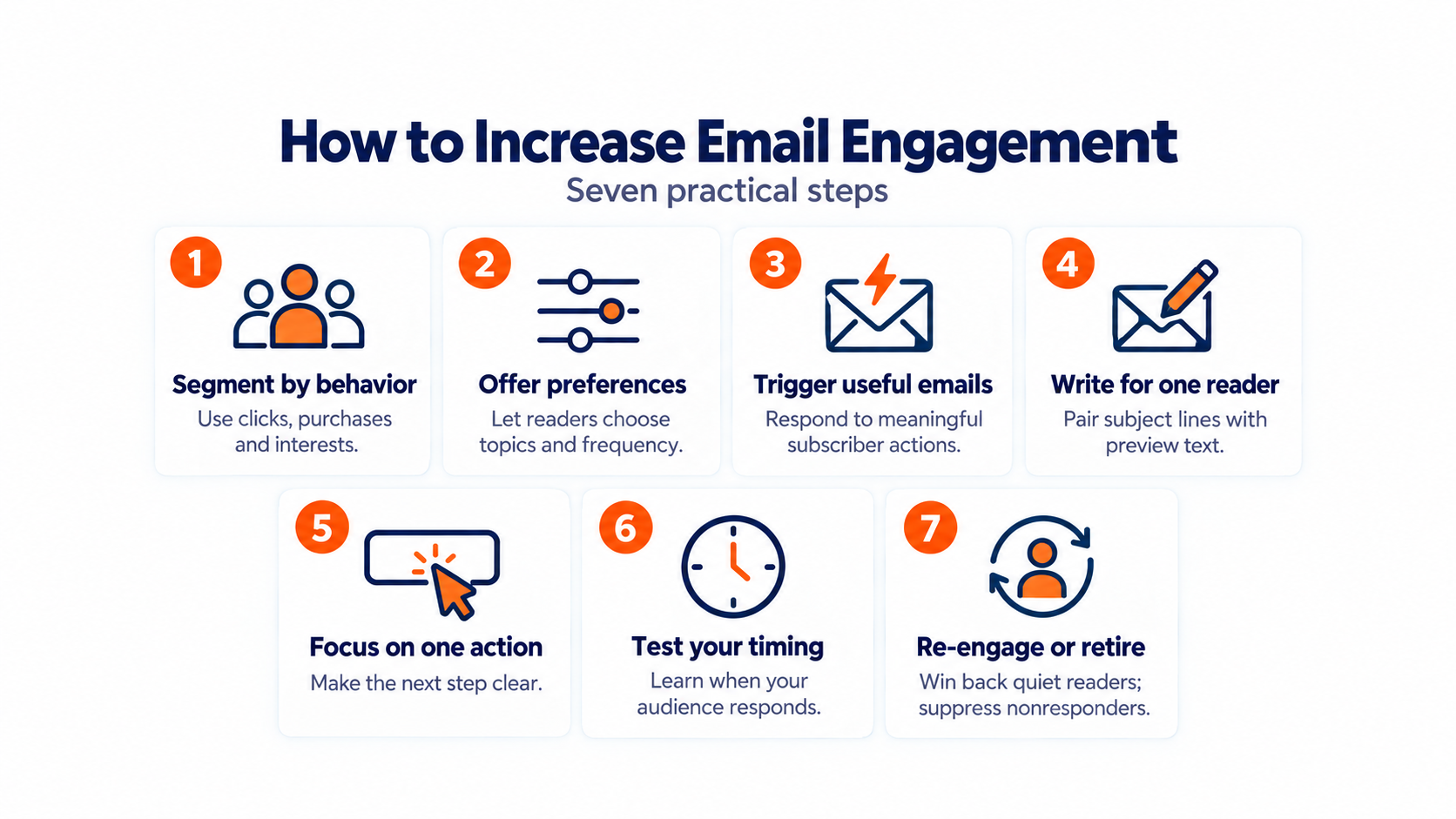
How to Increase Email Engagement in Seven Practical Steps September 30, 2026 The quickest answer to how to increase email engagement is relevance. Segment... Read More
Email Marketing Types and How to Use Each One September 29, 2026 Email marketing types are the categories of marketing email you send, sorted in... Read More
B2B Email Marketing Guide for Better Results September 28, 2026 B2B email marketing is the practice of sending permission-based email campaigns... Read More
Email Campaign Ideas That Actually Get Results (With Real Examples) September 22, 2026 Most "email campaign ideas" articles hand you a list of 30 things to send and... Read More
8 Email Campaign Examples Worth Copying September 21, 2026 You sit down to plan next month's sends, and the well is dry. Same newsletter,... Read More
Best Cart Abandonment Emails That Recover Revenue & Maximize Profits September 18, 2026 Seven out of ten people who add something to their cart walk away before... Read More
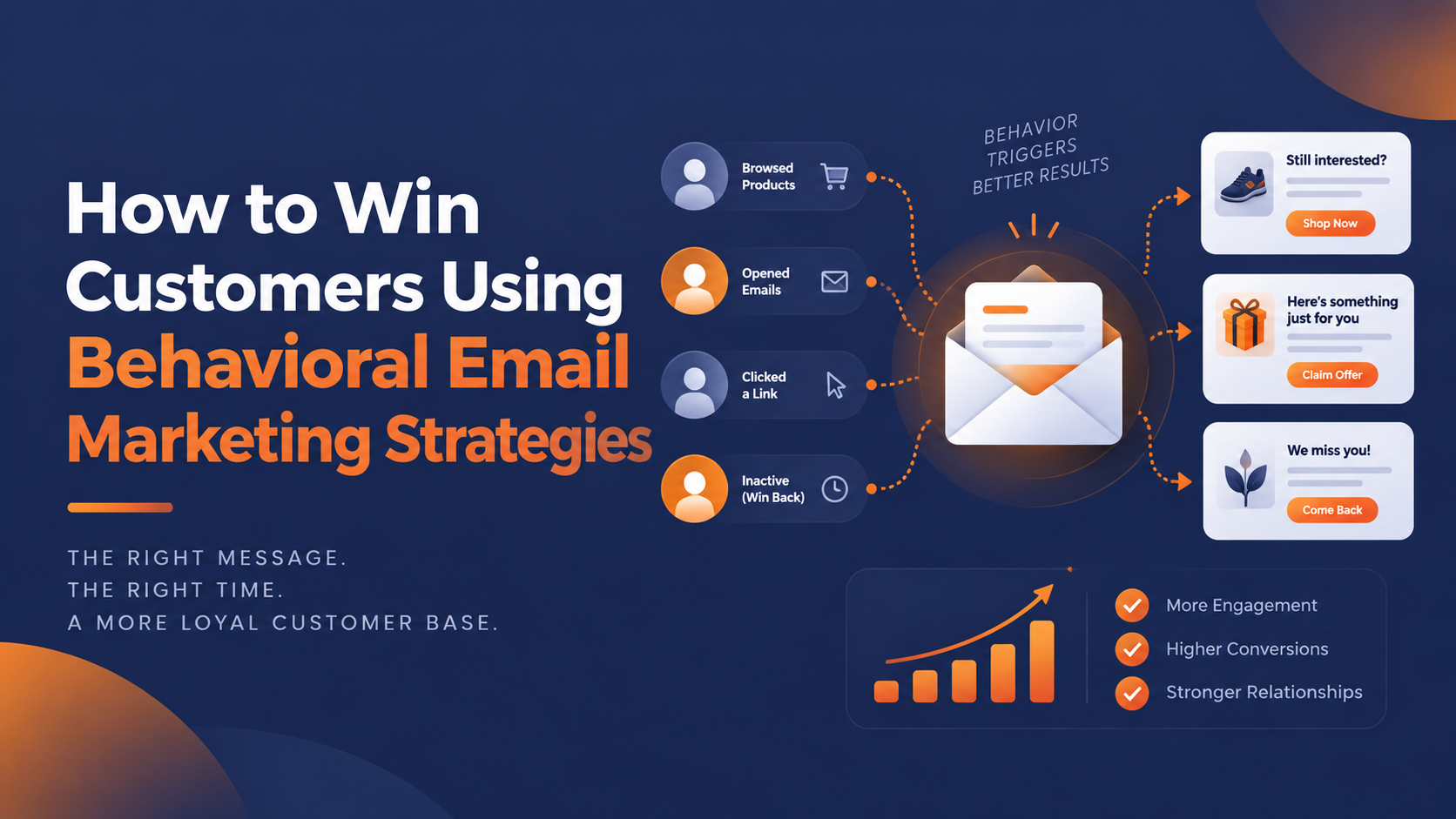
How to Win Customers Using Behavioral Email Marketing Strategies September 15, 2026 Most email programs fail by sending the exact same message to loyal VIPs and... Read More
What Are the Most Important Parts of an Email Campaign? September 11, 2026 Does this scenario sound familiar at all? Two subscribers open the same email.... Read More
Tips for Email Localization: Upgrading Your Global Email Marketing September 10, 2026 Four out of five people won't buy from a brand that doesn't talk to them in... Read More
Supercharge Your Marketing Engine With Paid Advertising And Automation September 9, 2026 Most marketing teams are confident they know what their spending earns them.... Read More
The Middle-of-Funnel Webinar Marketing Acceleration Formula September 8, 2026 Most of your best-fit buyers will never say yes to a demo the day they download... Read More
How to Optimize Your Website for Conversions Without More Traffic September 2, 2026 If you've been doing any marketing for your company, your website likely... Read More
How To Effectively Use Email and SMS Marketing To Drive Conversions September 1, 2026 Most brands run email marketing and SMS marketing as two separate programs, on... Read More
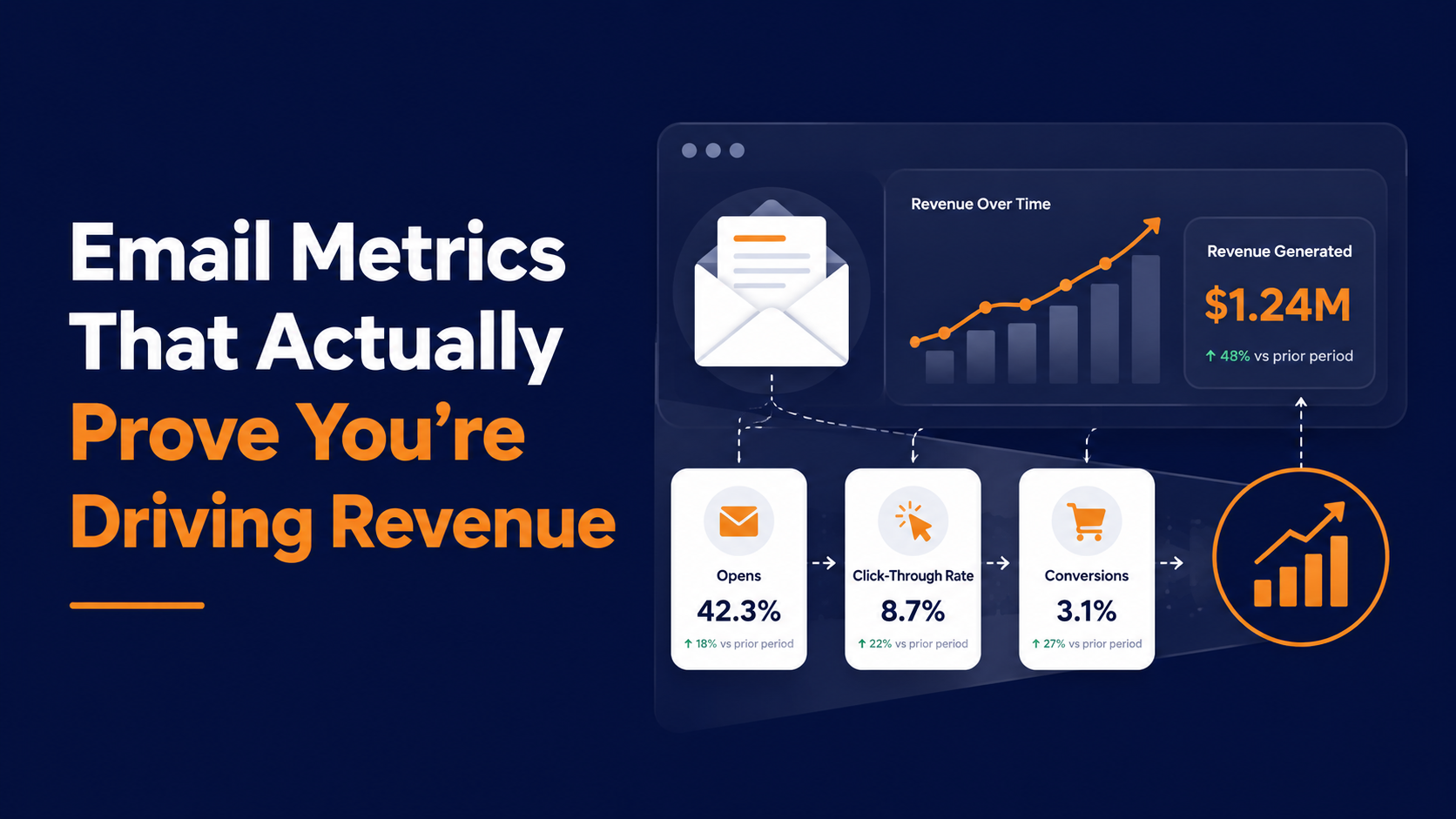
Email Metrics That Actually Prove You're Driving Revenue August 31, 2026 Your CFO does not care that your last campaign hit a 44% open rate. They care... Read More
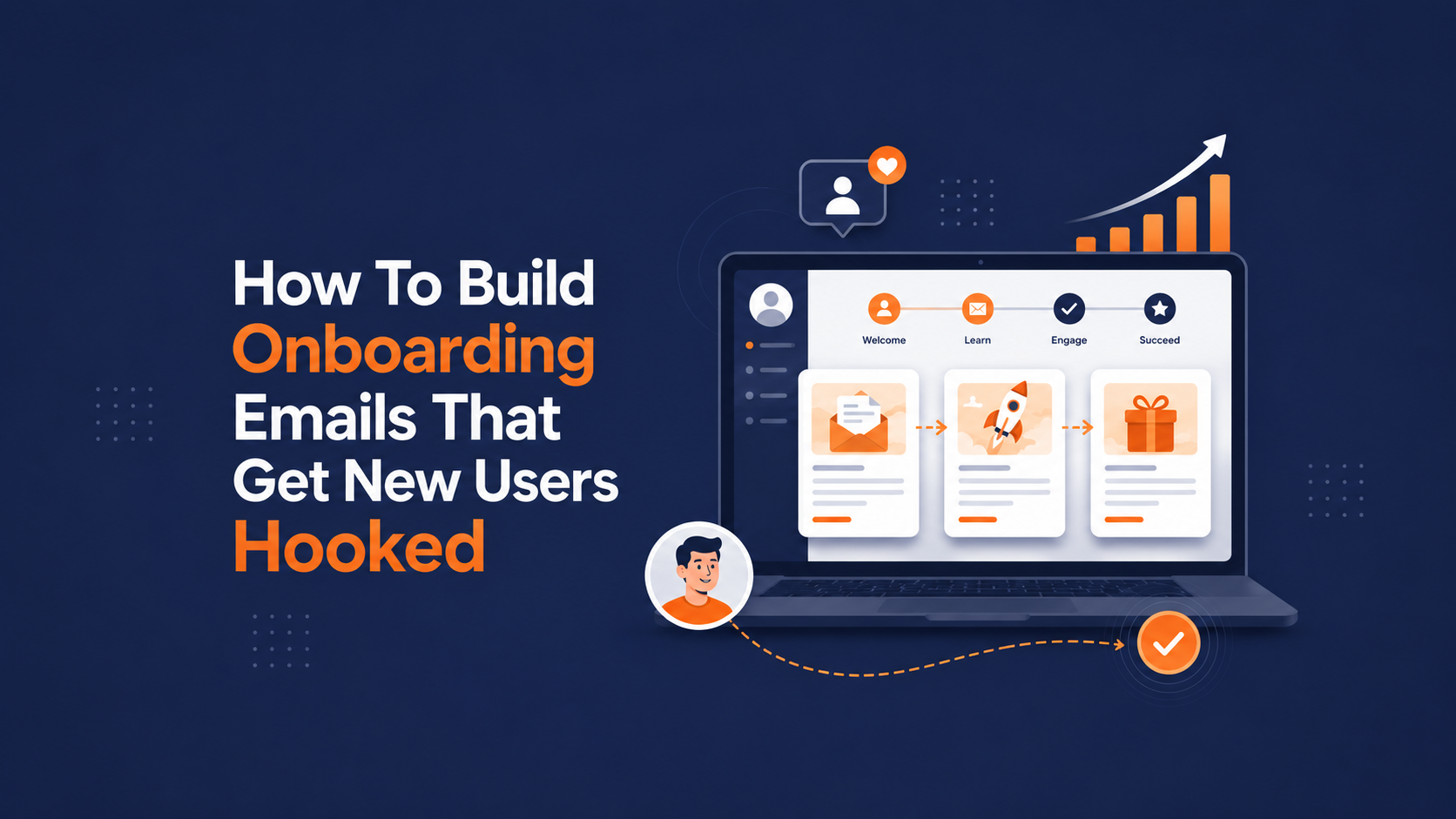
How To Build Onboarding Emails That Get New Users Hooked August 28, 2026 Most new signups decide whether your product is worth their time long before... Read More
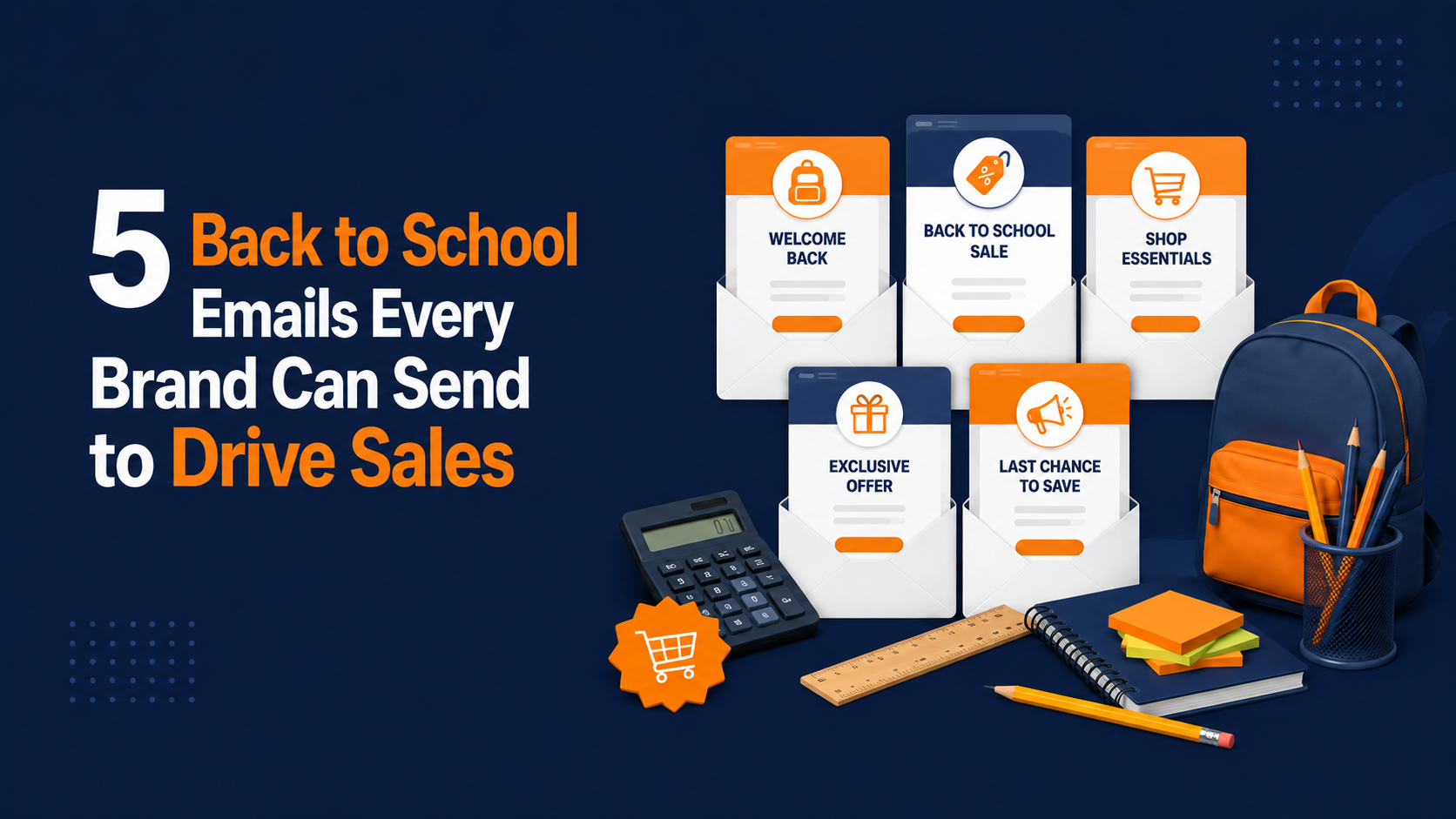
5 Back-to-School Emails Every Brand Can Send to Drive Sales August 27, 2026 The back-to-school aisle fills up before most families have unpacked their... Read More
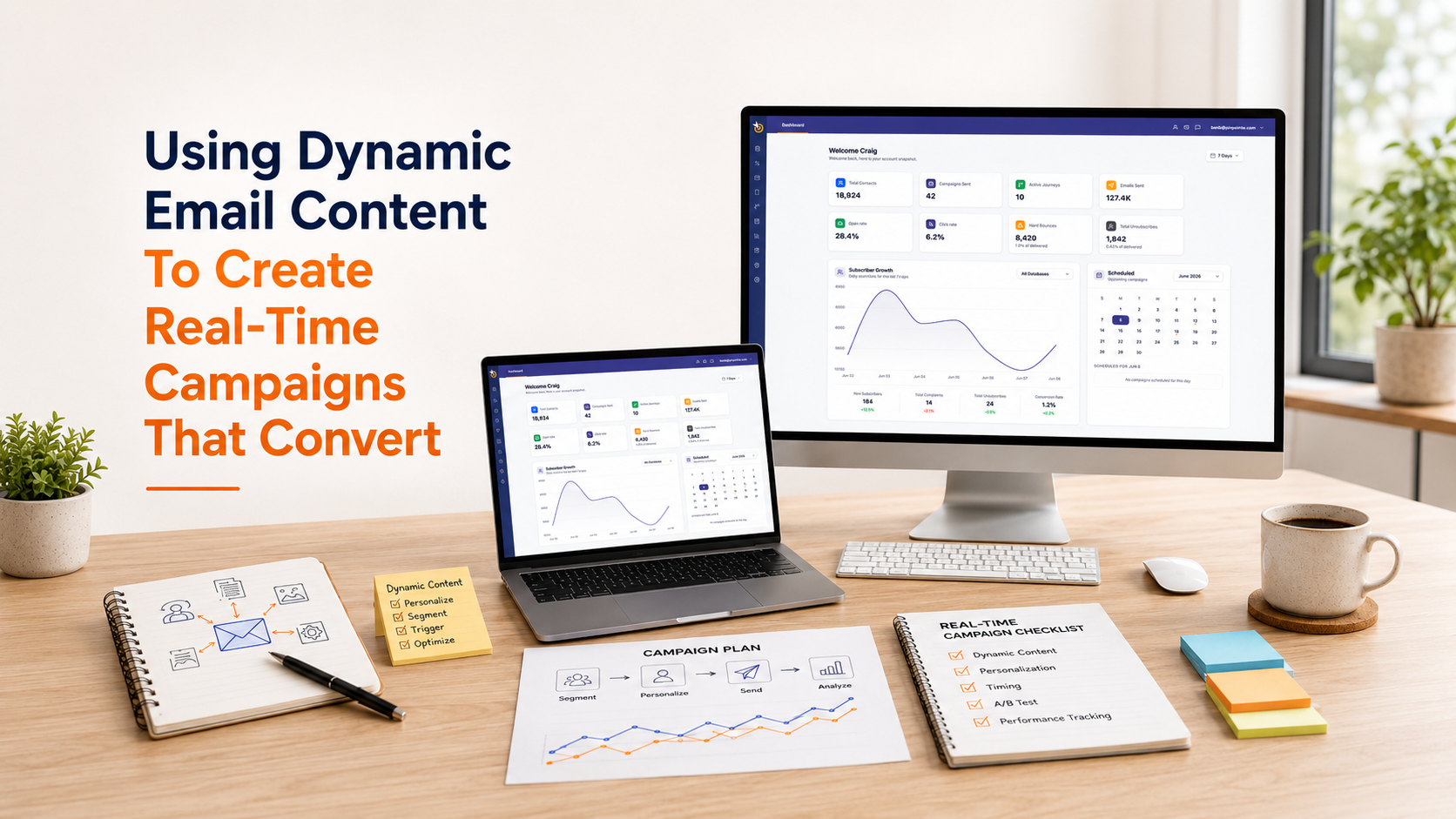
Using Dynamic Email Content To Create Real-Time Campaigns That Convert August 26, 2026 The moment you hit send, your static campaign starts lying to your prospects.... Read More
5 Creative Event Promotion Ideas to Boost Attendance August 25, 2026 You planned every detail of the event, confirmed the caterer, printed the... Read More
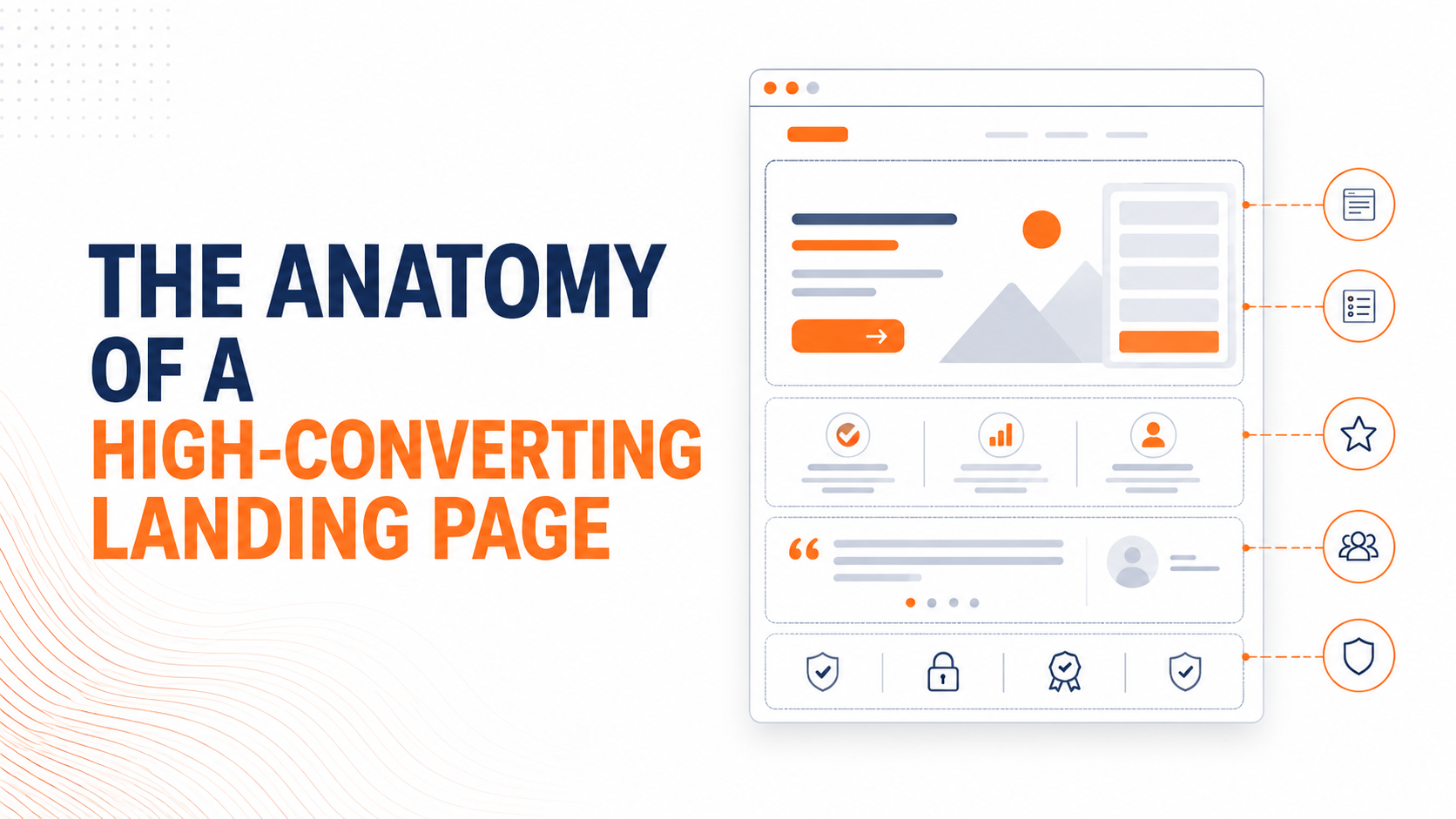
The Anatomy Of A High-Converting Landing Page August 21, 2026 Landing pages need to be an essential part of your email marketing strategy,... Read More
How to Remove your IP from ATTs Blacklist August 21, 2026 As with all of our articles on email blacklist management, we assume you are... Read More
How To Create a High Converting Email Newsletter August 20, 2026 E-commerce websites aside, businesses often use an email newsletter to share... Read More
The 12 Most Effective Lead Magnets That Actually Grow Your Email List August 20, 2026 Getting someone to hand over their email is harder than it's ever been.... Read More
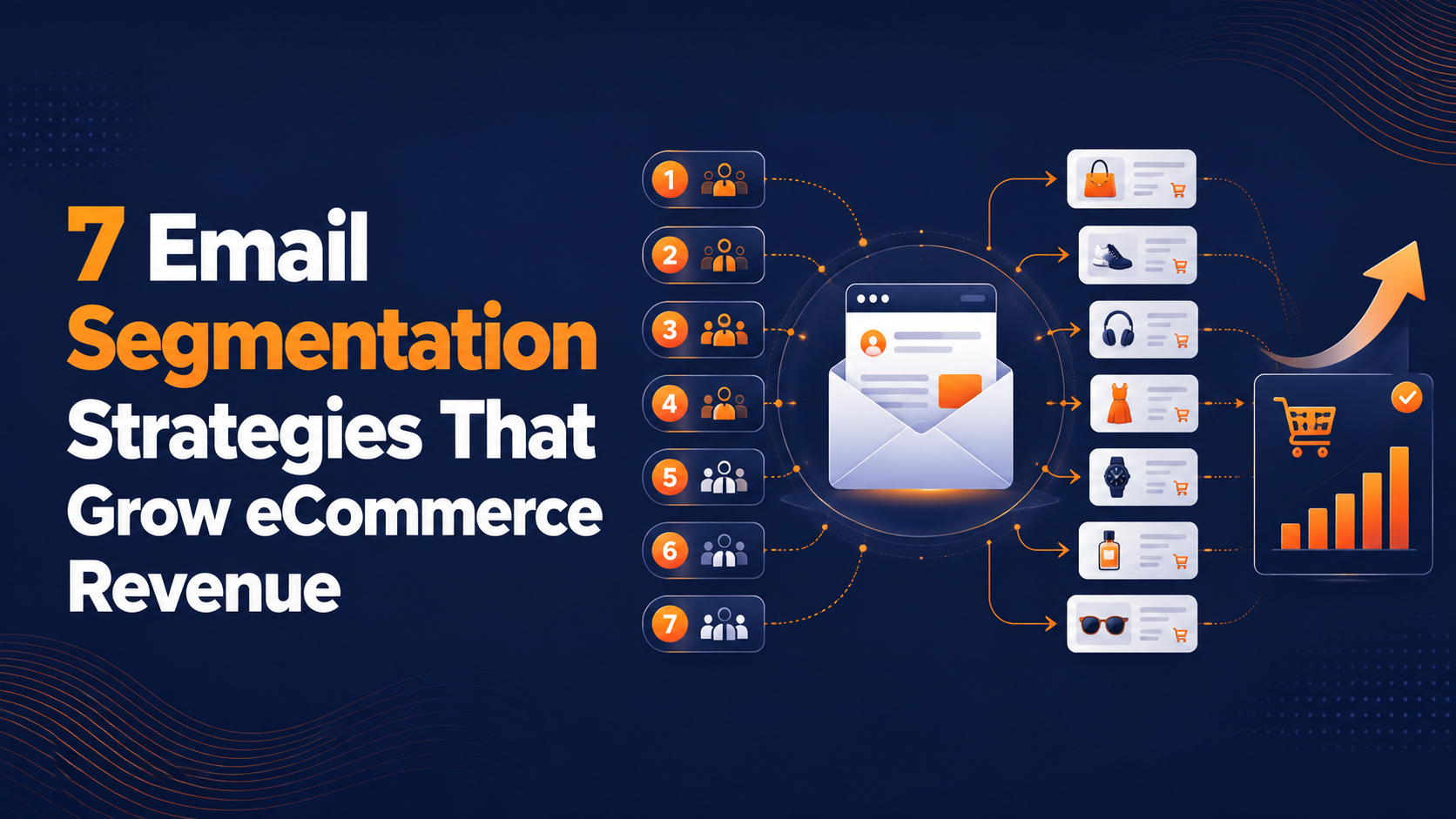
7 Email Segmentation Strategies That Grow eCommerce Revenue August 19, 2026 Your best customer and the person who bought one time eighteen months ago are... Read More
Maximize Conversions with Automated Landing Page Workflows August 18, 2026 Most landing pages fail not because of poor design, but because of delayed... Read More
Essential Elements Of Brand Identity That Actually Get You Remembered August 17, 2026 Brand identity goes far beyond logos and conference-room pitch decks. It is a... Read More
How to Write a Persuasive Email | The Psychology Behind Marketing August 13, 2026 Do you ever notice how marketers are usually a certain breed? They are more... Read More
Practical Tips for Improving Your Response Rate August 12, 2026 Response rate is one of the easiest marketing metrics to calculate and one of... Read More
How to Create a Personalized Image To Increase Engagement August 12, 2026 Your subscriber opens an email that greets them by name, shows them the exact... Read More
How To Warm Up Your Email IP And Domain Without Blowing It August 10, 2026 Send too much too fast from a new IP or domain, and Gmail treats you like a... Read More
Why People Unsubscribe From Emails And How To Persuade Them To Stay August 7, 2026 You spend real money and real effort getting someone onto your list, and a... Read More
Proven Tips to Create a Killer Call to Action for Every Email August 7, 2026 Most emails don't fail because of the offer. They fail in the last inch, the... Read More
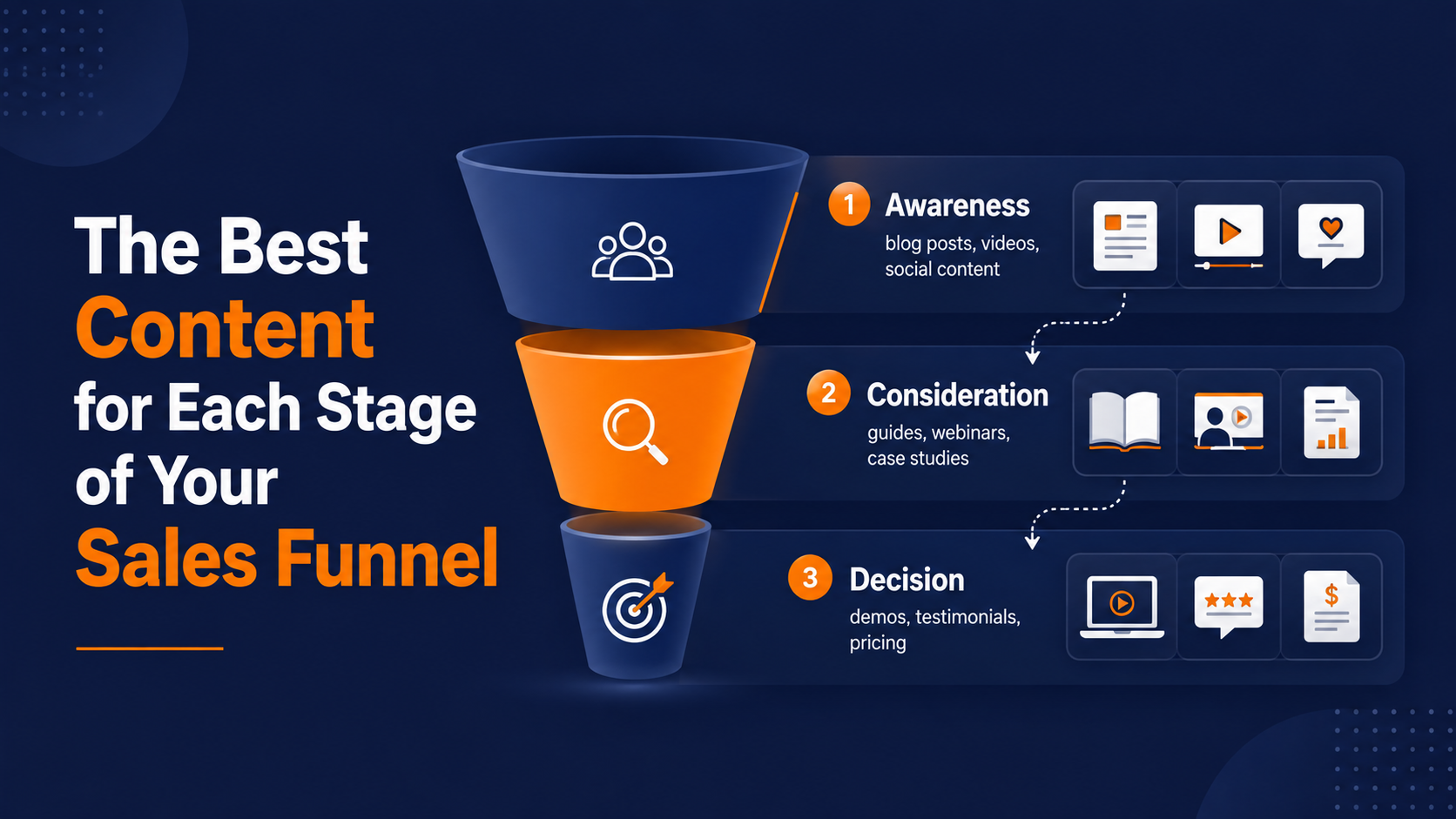
The Best Content for Each Stage of Your Sales Funnel August 6, 2026 Most of the people who will eventually buy from you are already deep into... Read More
7 Email Marketing Ideas to Send When You're Out of Ideas August 6, 2026 You've got a send date on the calendar and nothing in the doc. That gap between... Read More
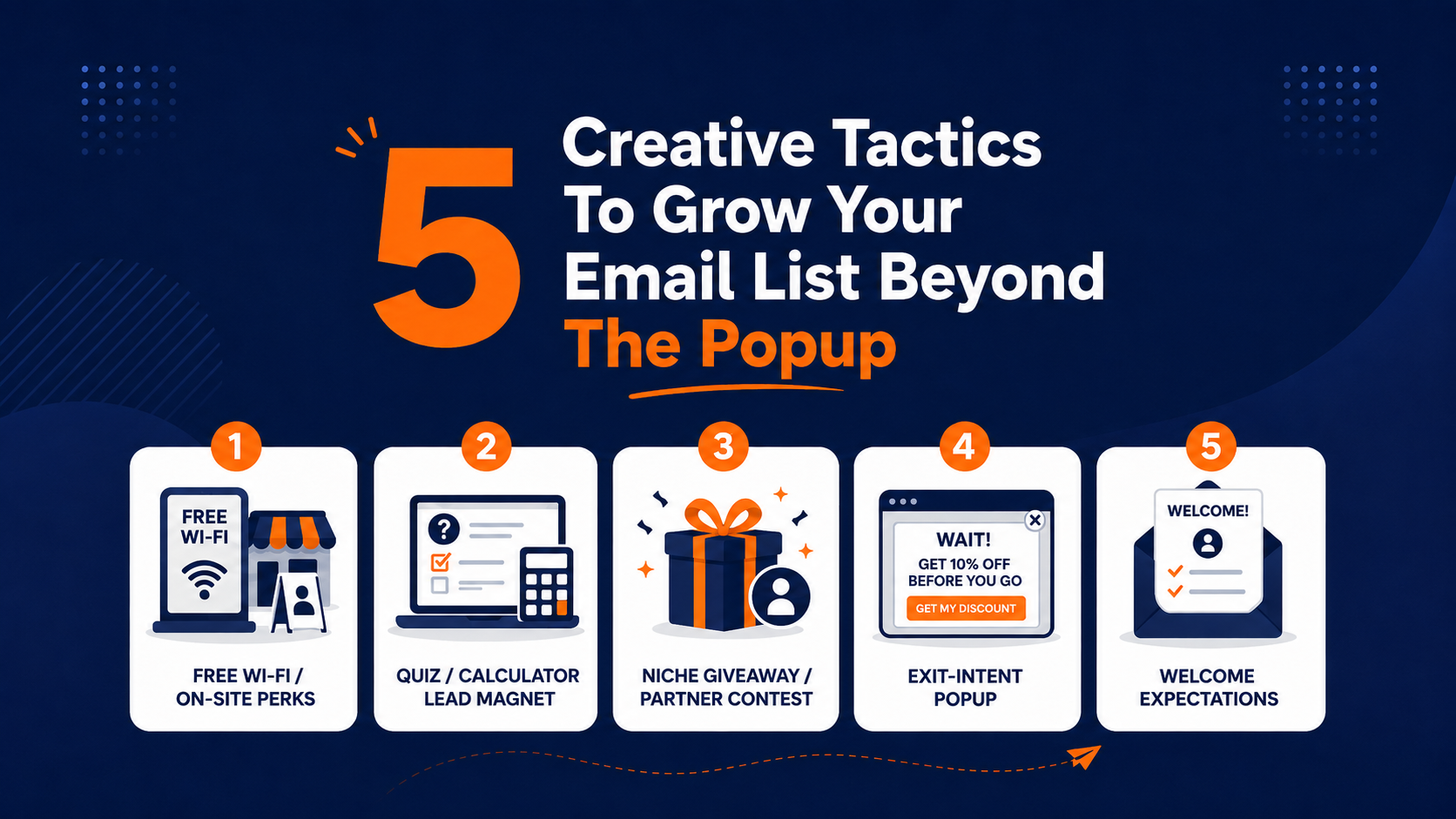
5 Creative Tactics To Grow Your Email List Beyond The Popup August 5, 2026 Most brands still think list building means one popup with a discount code... Read More
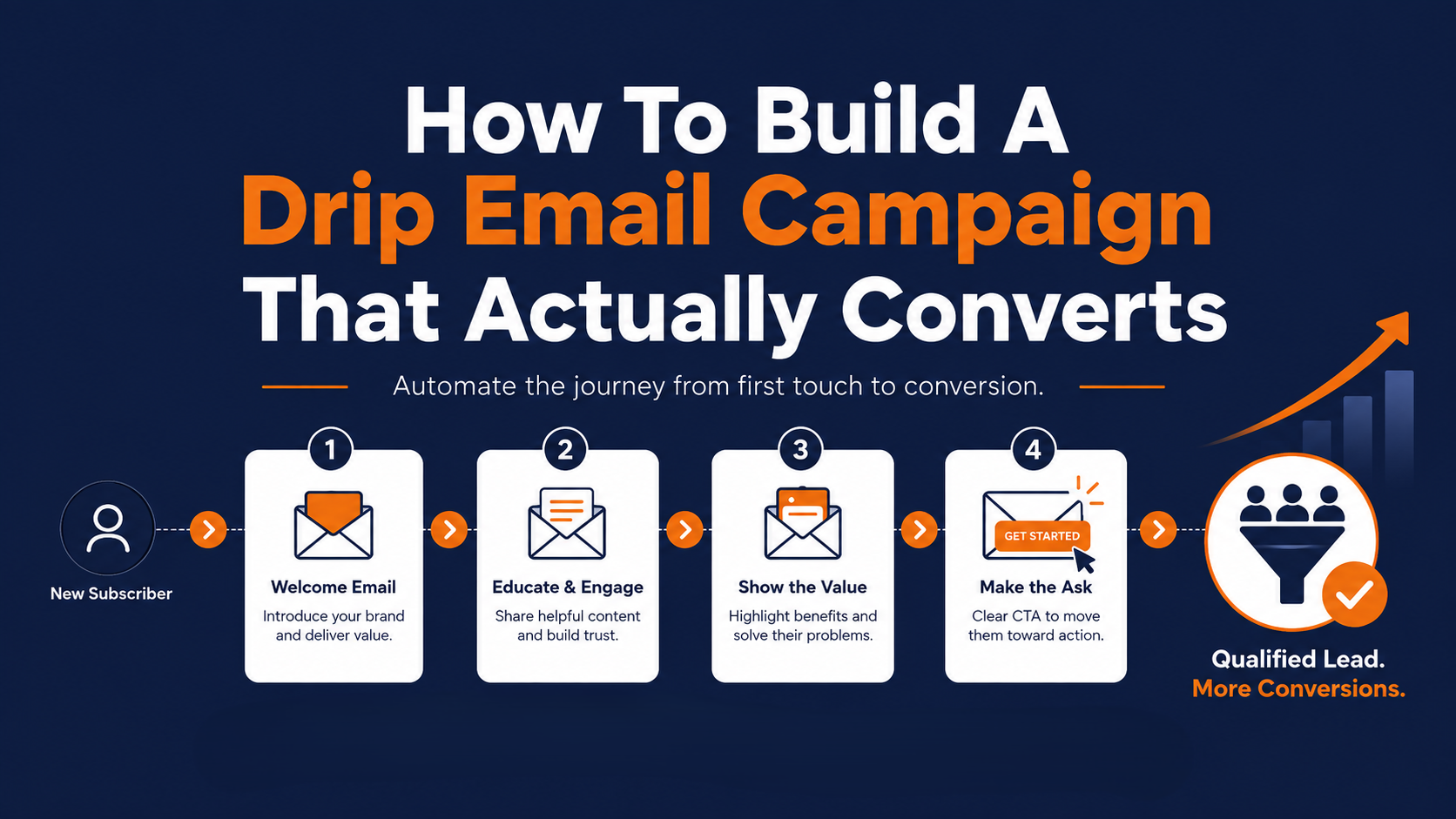
How To Build A Drip Email Campaign That Actually Converts August 4, 2026 You set up a welcome email eighteen months ago. It still fires today, and you... Read More
How to Run an Email Marketing Audit (Step-by-Step) August 3, 2026 Most marketers can tell you their last open rate off the top of their head.... Read More
5 Simple Steps to Warming Up Your Cold Email Marketing Strategy July 31, 2026 Ninety seconds. That's roughly how long a cold prospect spends deciding whether... Read More
How to Build Email Newsletter Engagement That Actually Lasts July 31, 2026 Most subscribers decide whether your newsletter is worth opening again within... Read More
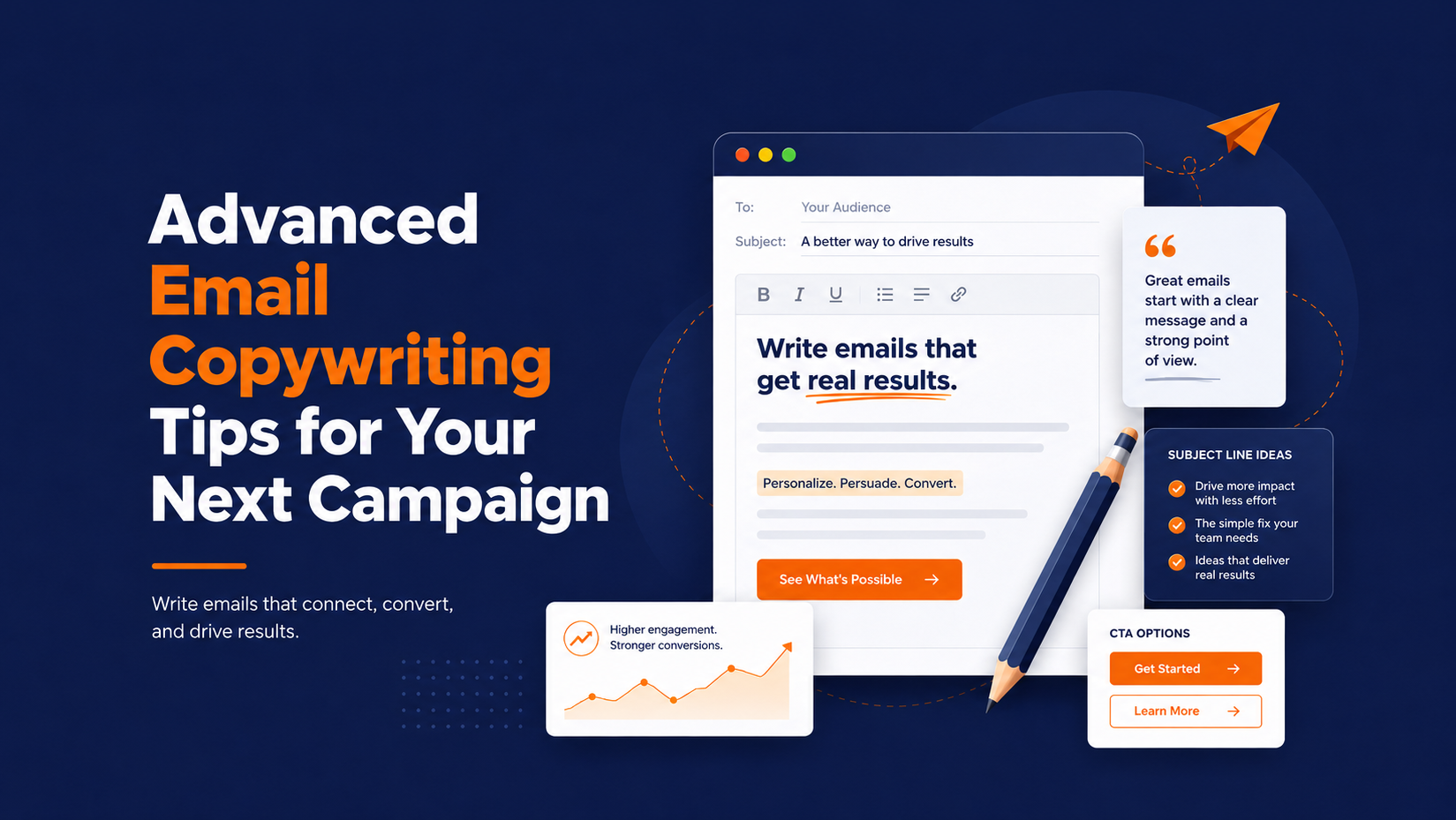
Advanced Email Copywriting Tips for Your Next Campaign July 31, 2026 A well-written email can outperform a mediocre one by a wide enough margin that... Read More
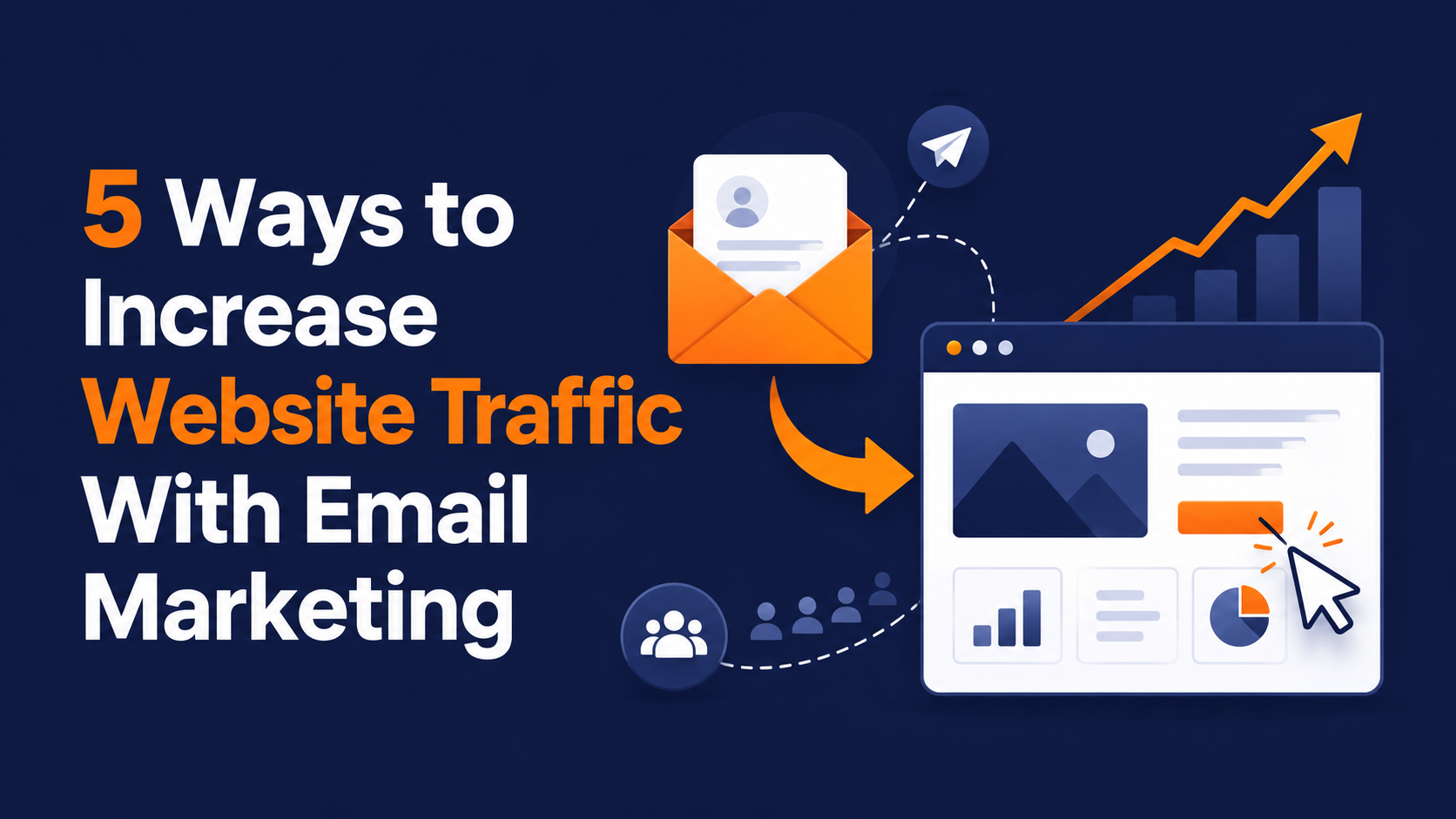
5 Ways to Increase Website Traffic with Email Marketing July 30, 2026 Your best landing page can be perfectly designed, fast-loading, and sitting at... Read More
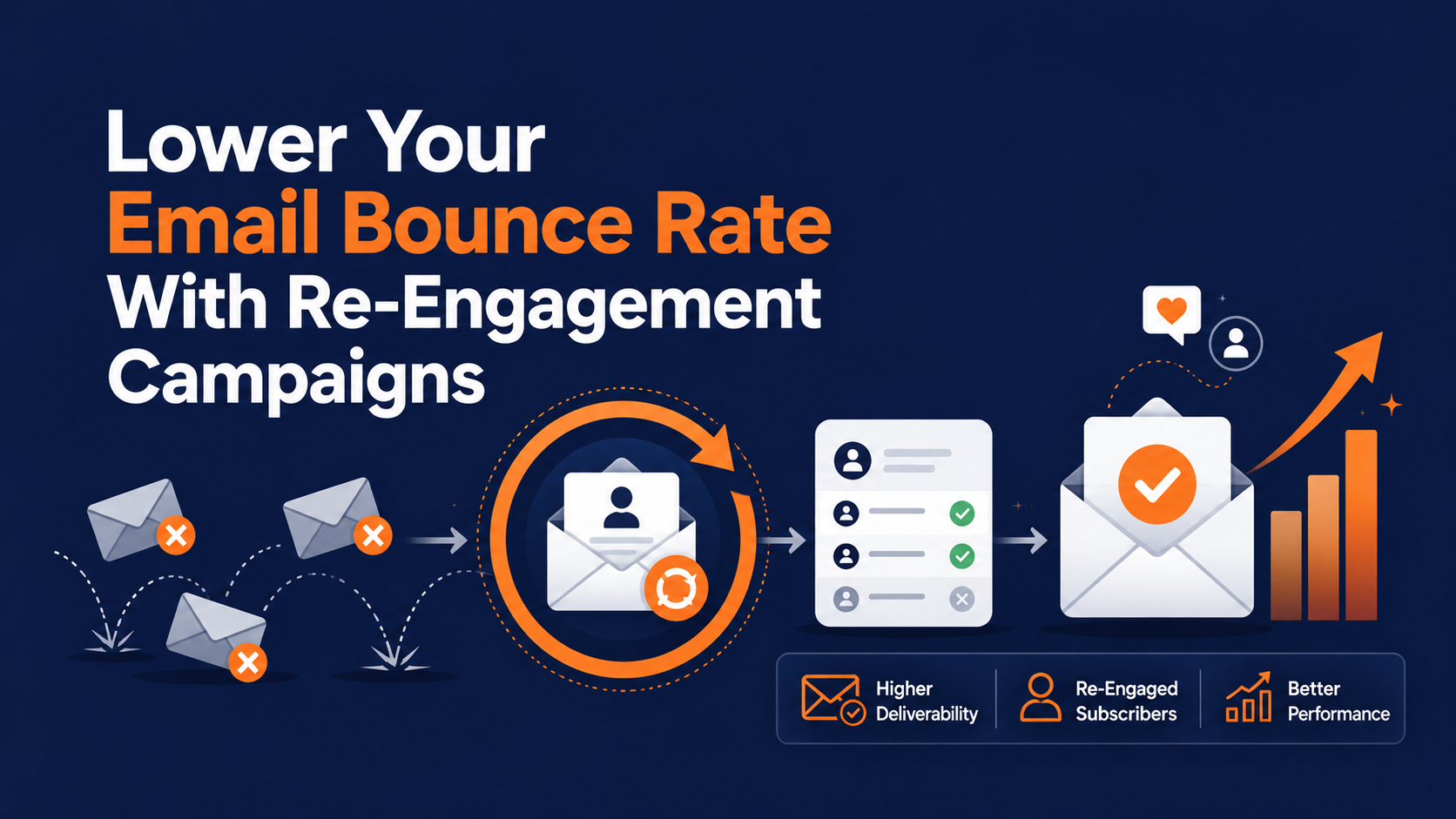
Lower Your Email Bounce Rate With Re-Engagement Campaigns July 30, 2026 Your open rate looks healthy. Your click rate looks fine. Then you check the... Read More
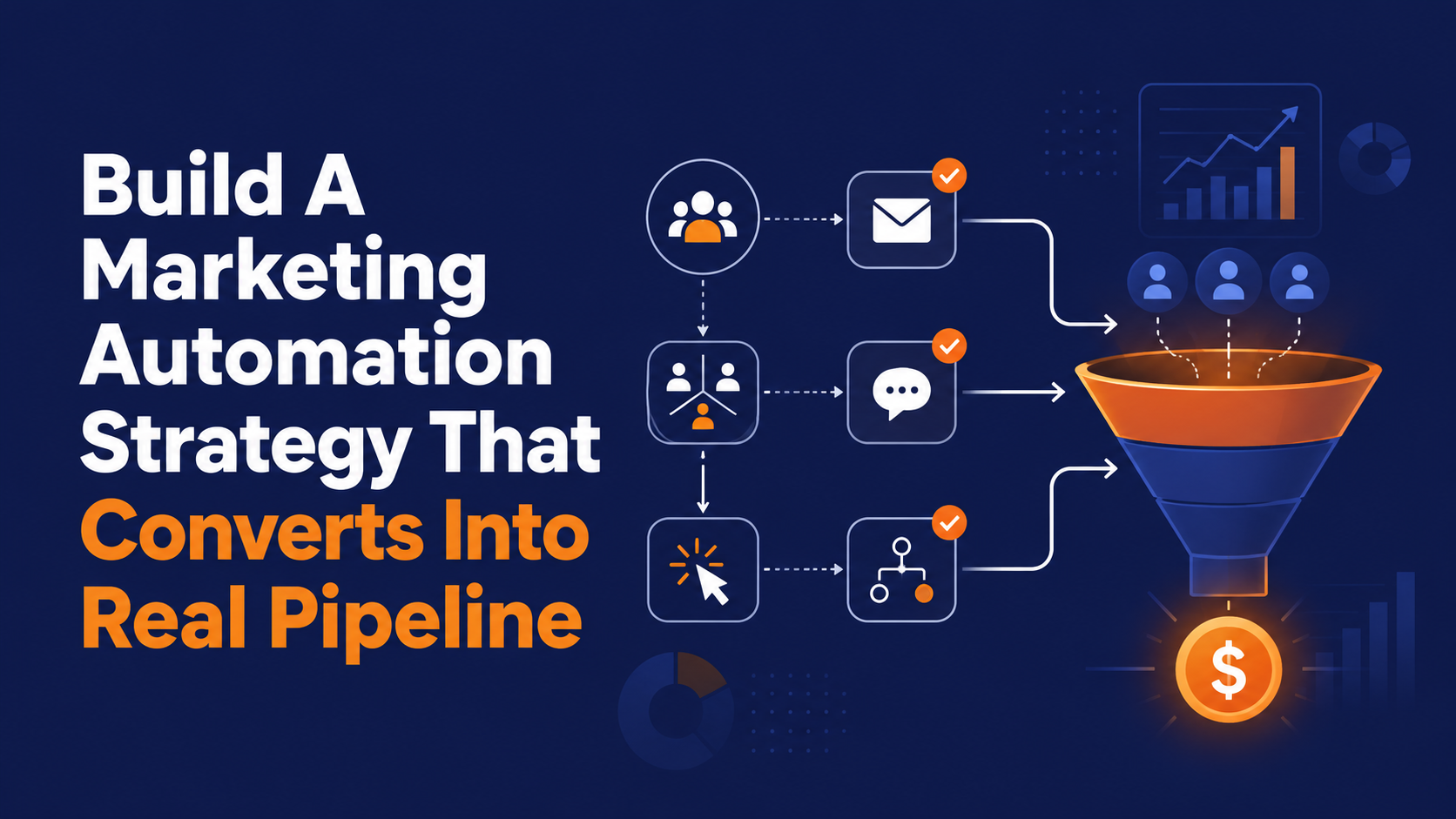
Build A Marketing Automation Strategy That Converts Into Real Pipeline July 29, 2026 Somewhere in your platform right now sits a welcome series nobody has touched... Read More
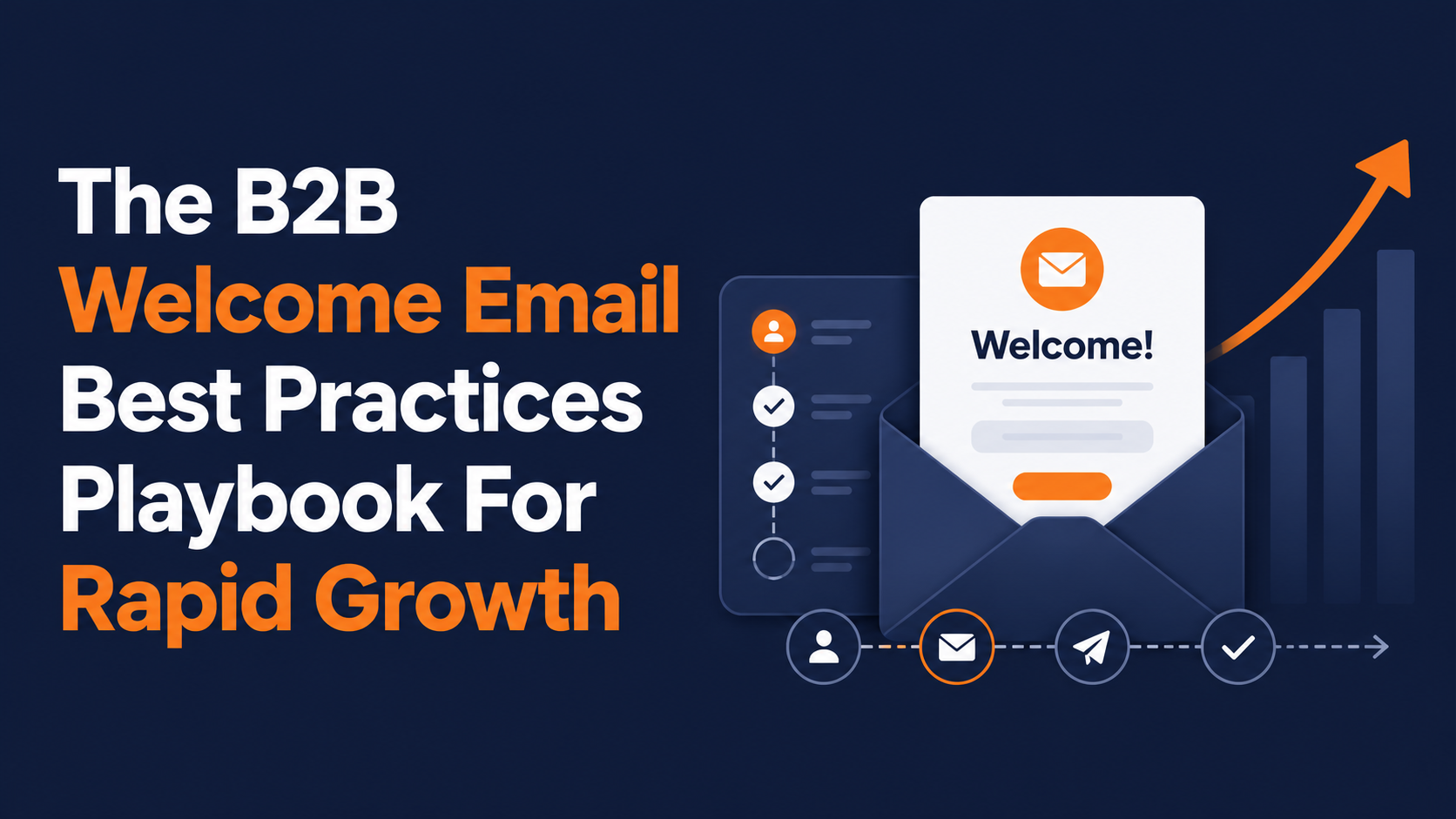
The B2B Welcome Email Best Practices Playbook For Rapid Growth July 29, 2026 You never get a second chance to make a first impression. In email, you don't... Read More
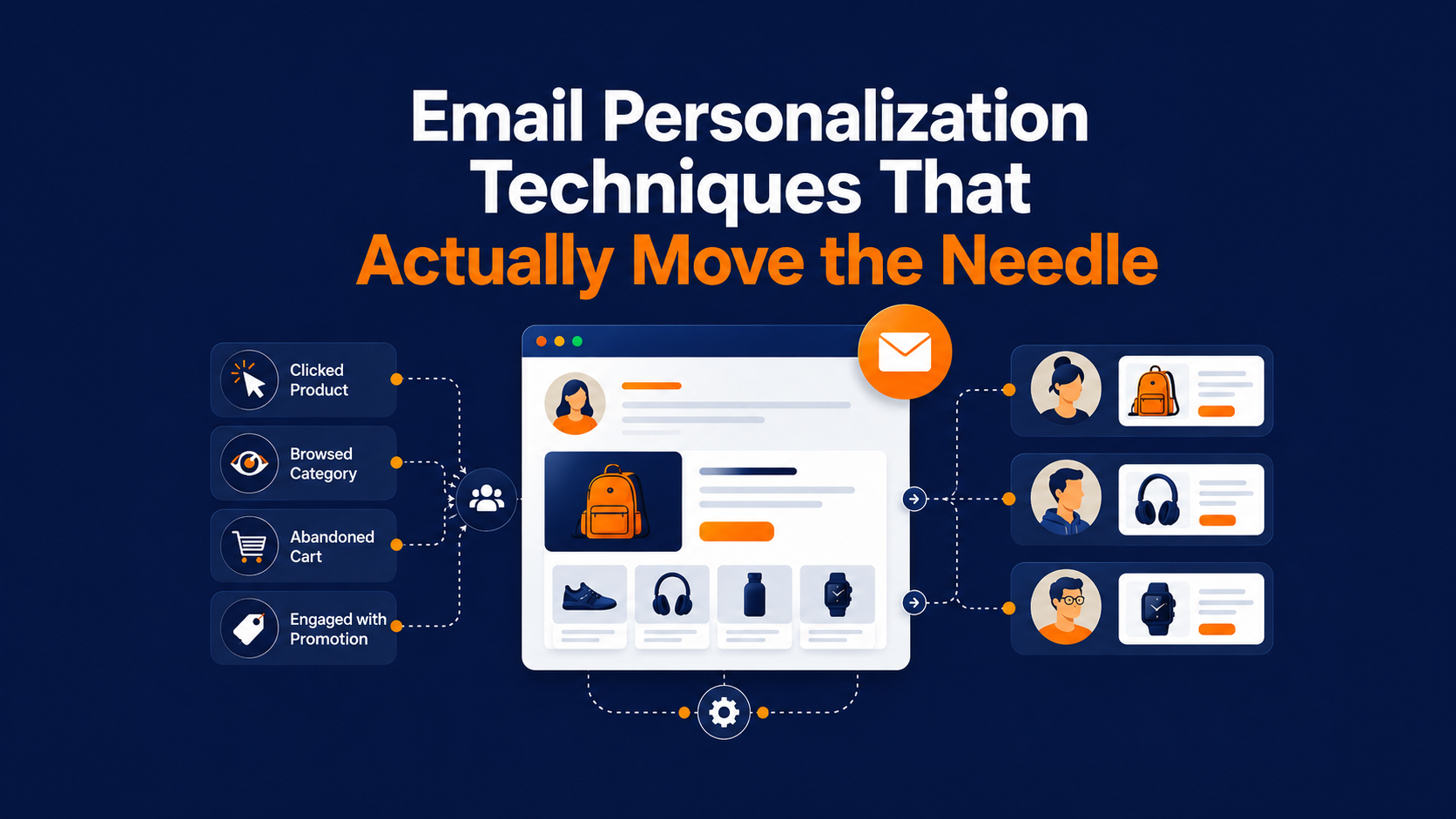
Email Personalization Techniques That Actually Move the Needle July 28, 2026 Your subscribers can tell the difference between "Hi [First Name]" and a brand... Read More
3 Lead Generation Emails That Actually Fill Your Pipeline July 28, 2026 If you feel like most invitation emails still read like a meeting notice nobody... Read More
Best Time to Send Marketing Emails Complete Guide to B2B, B2C & Beyond July 28, 2026 A brand we watched over the past year sent the same win-back email twice. Same... Read More
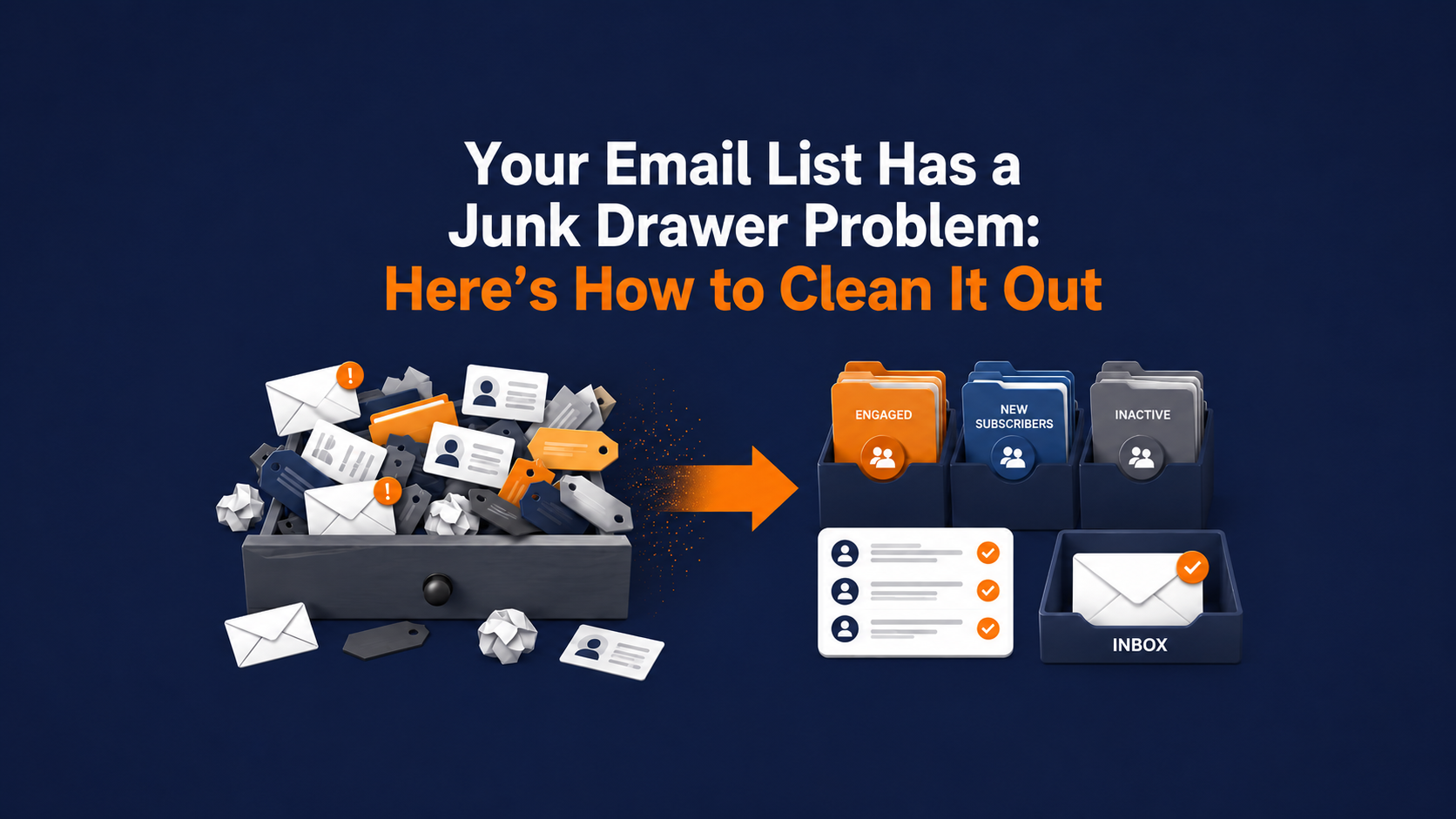
Your Email List Has a Junk Drawer Problem: Here's How to Clean It Out July 27, 2026 You've got a subscriber on your list right now who signed up back in 2020,... Read More
40 Truly Useful Email Marketing Statistics & SMS Marketing Statistics July 27, 2026 These email marketing statistics and sms marketing statistics come from the way... Read More
How to Use Social Media & Email Marketing to Rapidly Grow Your Audience July 27, 2026 You're probably running email and social media like two separate jobs. You... Read More
Stop Calling It An Email Blast - What This Reveals About Your Strategy July 24, 2026 Say "email blast" in a room full of email marketers and watch the wincing... Read More
How to Build an Email Marketing Strategy & Turn Subscribers Into Sales July 24, 2026 You already believe email works. What you might not believe is how much money... Read More
Mail Privacy Protection & Email Open Rate Tracking Where It Stands Now July 23, 2026 Apple launched Mail Privacy Protection in September 2021 as part of iOS 15,... Read More
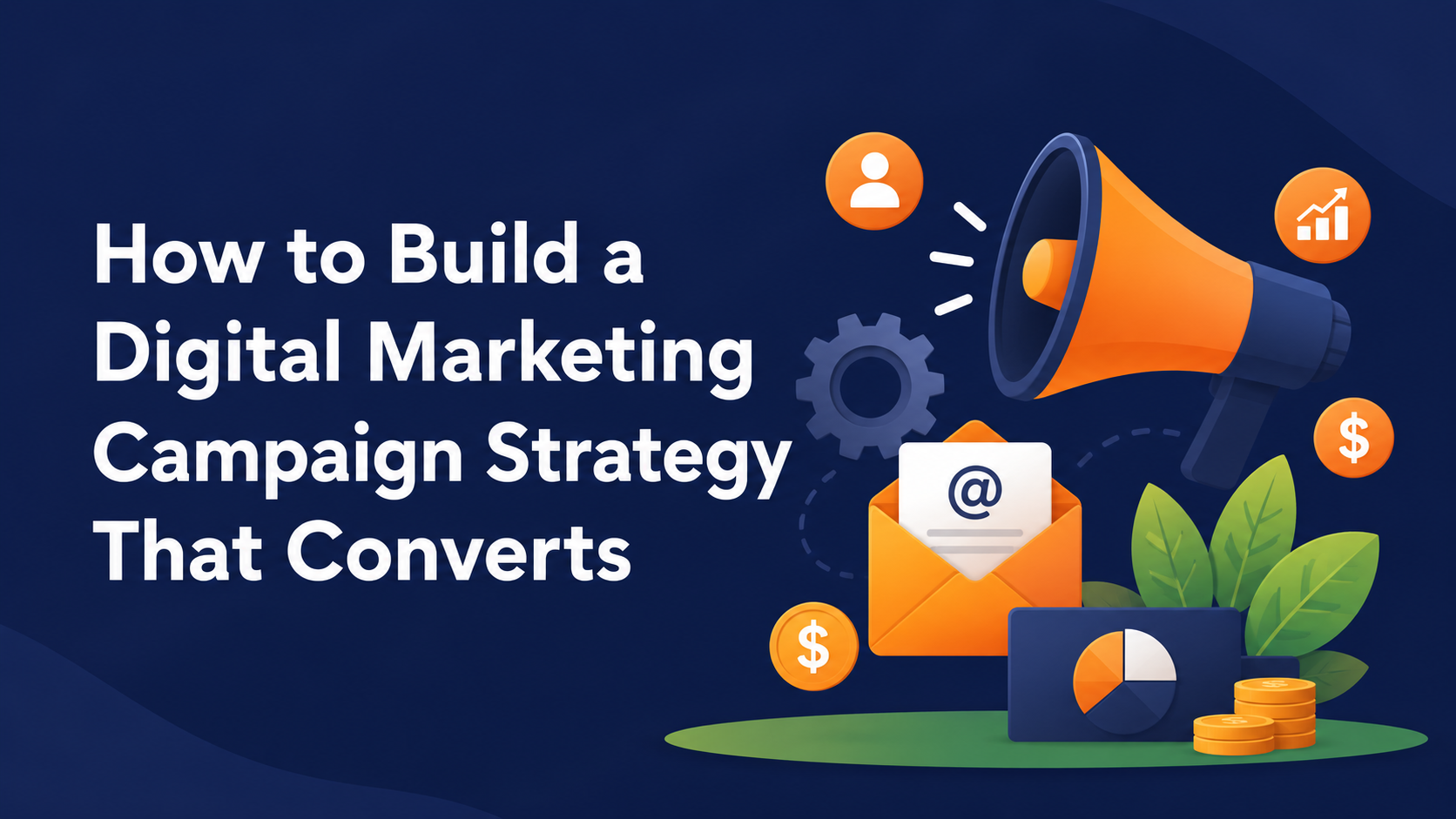
How to Build a Digital Marketing Campaign Strategy That Converts July 23, 2026 You've probably shipped a campaign that tried to talk to everyone. It landed... Read More
Best Email Subject Lines: What the Data Actually Says (With Examples) July 22, 2026 Open rate stopped being an honest number a while ago, and most advice on the... Read More
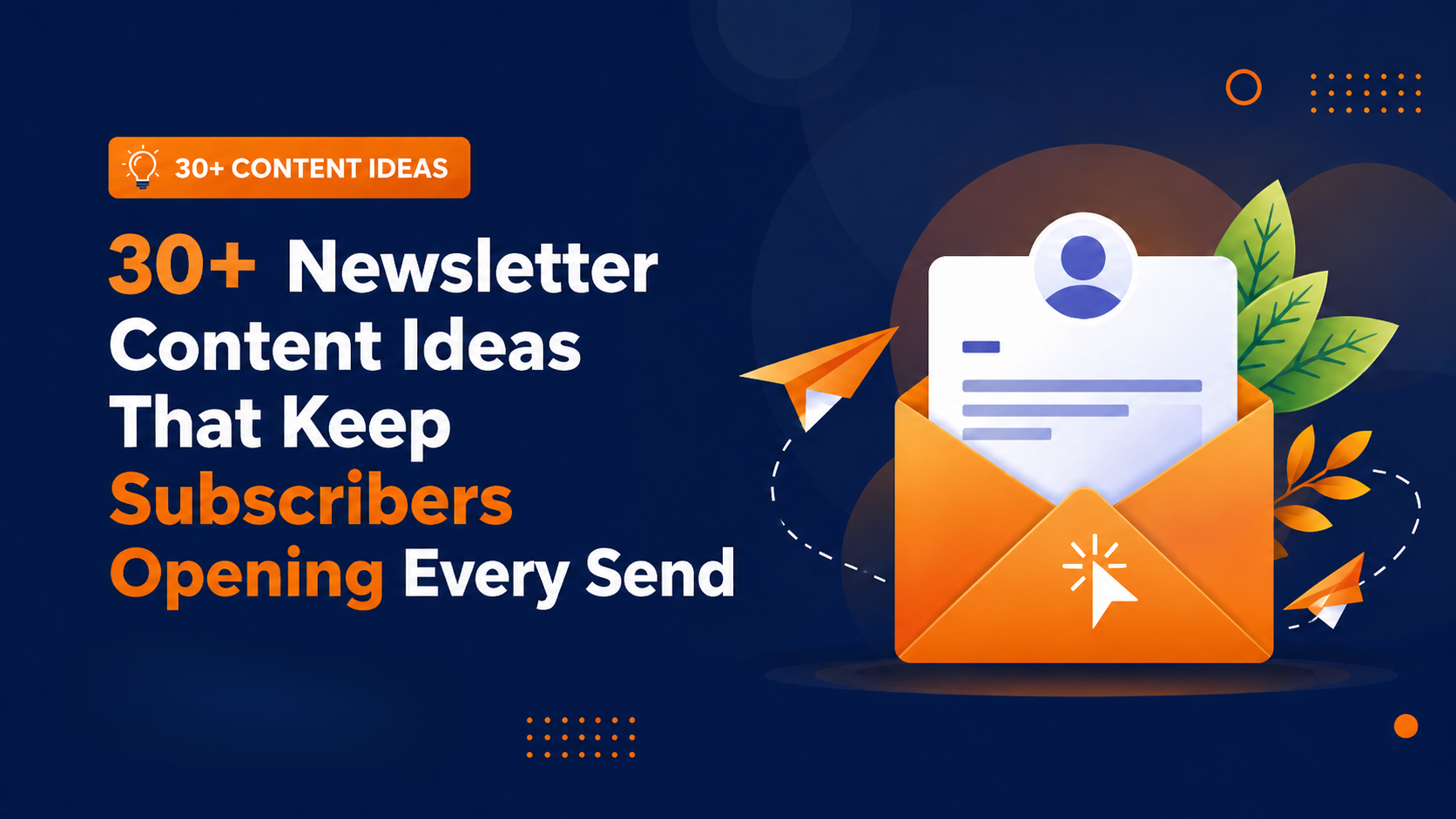
30+ Newsletter Content Ideas That Keep Subscribers Opening Every Send July 22, 2026 Most newsletters don’t die from bad design. They die because the person writing... Read More
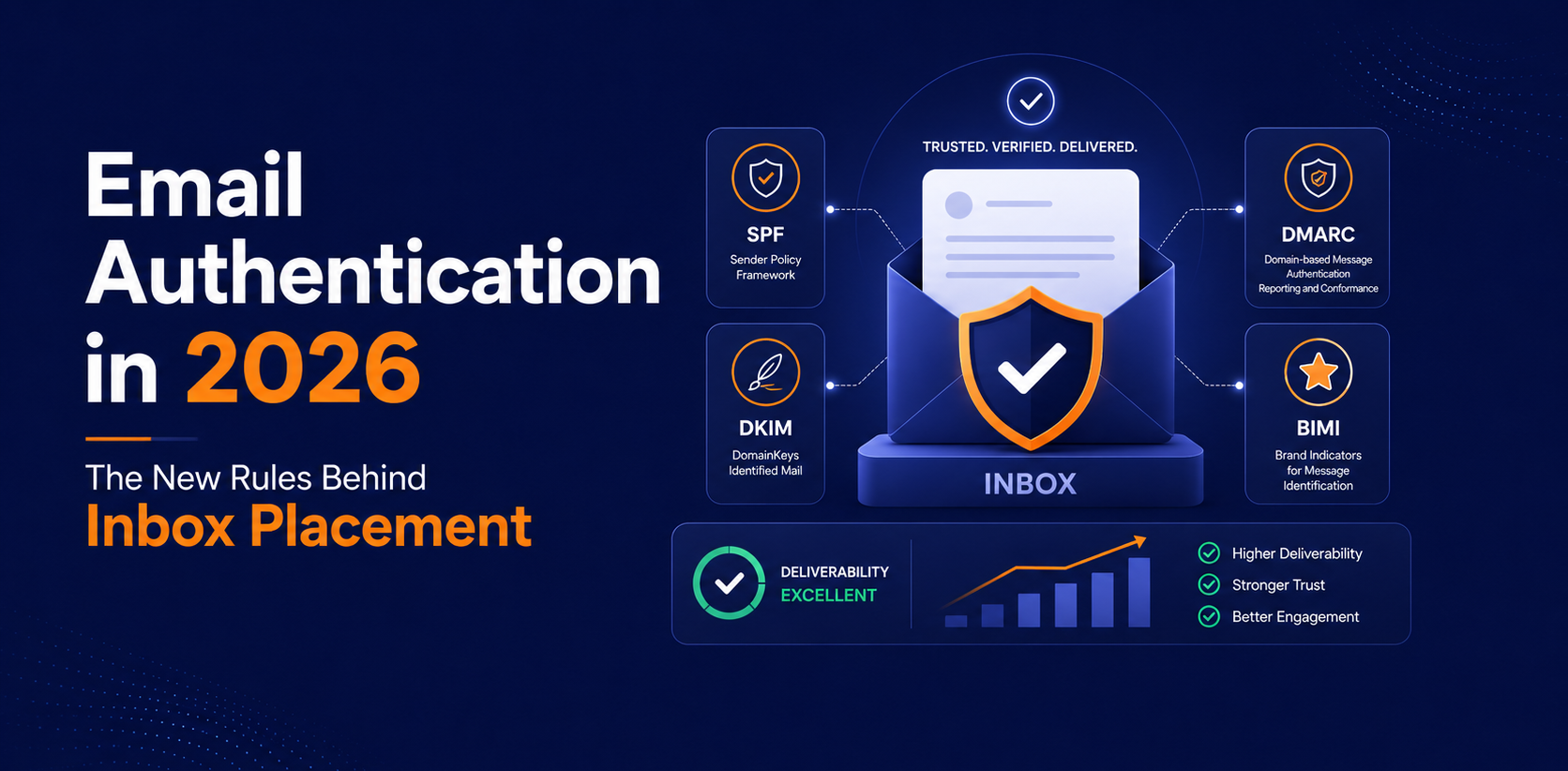
Email Authentication in 2026: The New Rules Behind Inbox Placement July 21, 2026 Here's an uncomfortable number: more than 30 percent of email that passes every... Read More
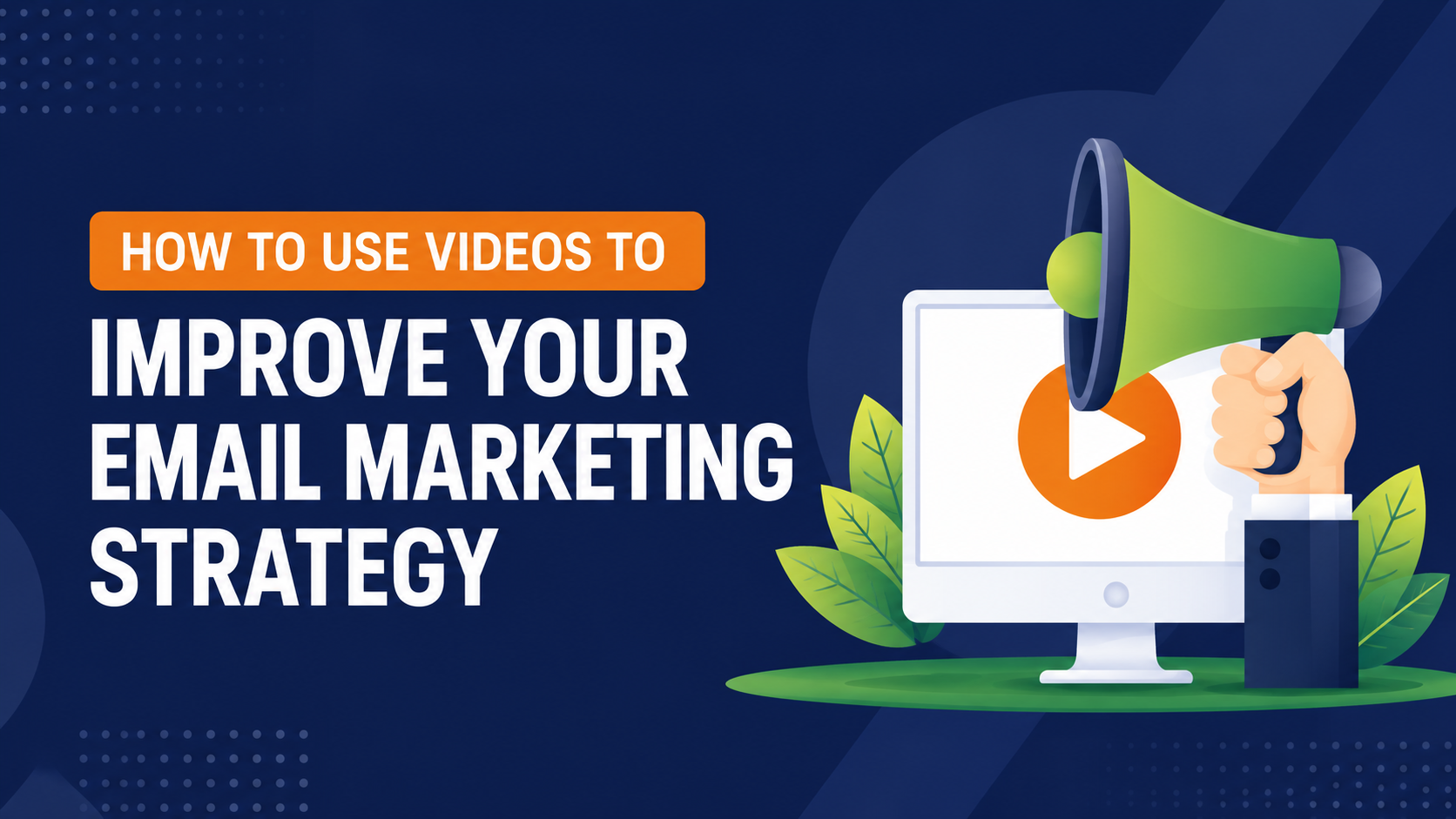
How to Use Videos to Improve Your Email Marketing Strategy July 21, 2026 Your open rates are fine. Your click rates are the problem. And there's a good... Read More
Email Scheduling Features That Will Improve Your Email Response Rates July 20, 2026 There are dozens of small changes you can make to an email campaign to improve... Read More
On-Demand Webinar - What's Working in Email Marketing? July 17, 2026 In our continuing series of Email Marketing Webinars, we are delighted to be... Read More
Webinar: How a SPAM Firewall Works July 17, 2026 In this Webinar, (aka "Why Good Emails Go Bad") we take it up a notch and... Read More
Webinar - Use Split Testing to Improve Email Responses July 17, 2026 This is our third in a series of webinars for your business email marketing.... Read More
Webinar - Drip Marketing Campaign Strategies July 17, 2026 Webinar – Autoresponders and Drip Marketing Tips – Tamara Gielen from Pinpointe. Read More
Webinar: Writing Tips to Improve Email Responses July 17, 2026 Which is more important – a great subject line, or a fantastic graphic design... Read More
On-Demand Webinar w/ Bob Bly | How To Use Content Marketing's Biggest Secret Weapon July 17, 2026 How To Use Content Marketing's Biggest Secret Weapon Presented by Bob Bly Free... Read More
How To Design Landing Pages That Increase Conversion Rates & Sales July 17, 2026 Want to double or triple conversion rates, leads, and online sales? We’ll show... Read More
How To Create Email Campaigns That Get More Opens, Clicks and Sales July 17, 2026 Email is still one of the most effective marketing tools for many businesses,... Read More
Webinar: 3 BIG Ideas to Improve Your Email & Digital Marketing July 17, 2026 Want BIG ideas on how to rock your email campaigns and improve your email... Read More
[On-Demand Webinar] How To Create Amazing Mobile Emails July 17, 2026 Digestible Tips and Best Practices for Mobile Emails The age of desktop email... Read More
[On-Demand Webinar] 17 Secrets Every Email Marketer Should Know July 17, 2026 Up to 64% of people often open up an email because of the subject line, yet... Read More
Must Know Proven & Valuable Email Marketing Tools and Tactics July 17, 2026 When it come to email marketing most businesses focus on opt-ins, open rates,... Read More
On-Demand Webinar: How to Get Personal With B2B Email Marketing July 16, 2026 Marketers are living in the age of personalization. They often have a wealth of... Read More
On-Demand Webinar: 10 Deadly Sins of Email Marketing July 16, 2026 Are you an email marketing sinnner? Chances are, you’re committing a serious... Read More
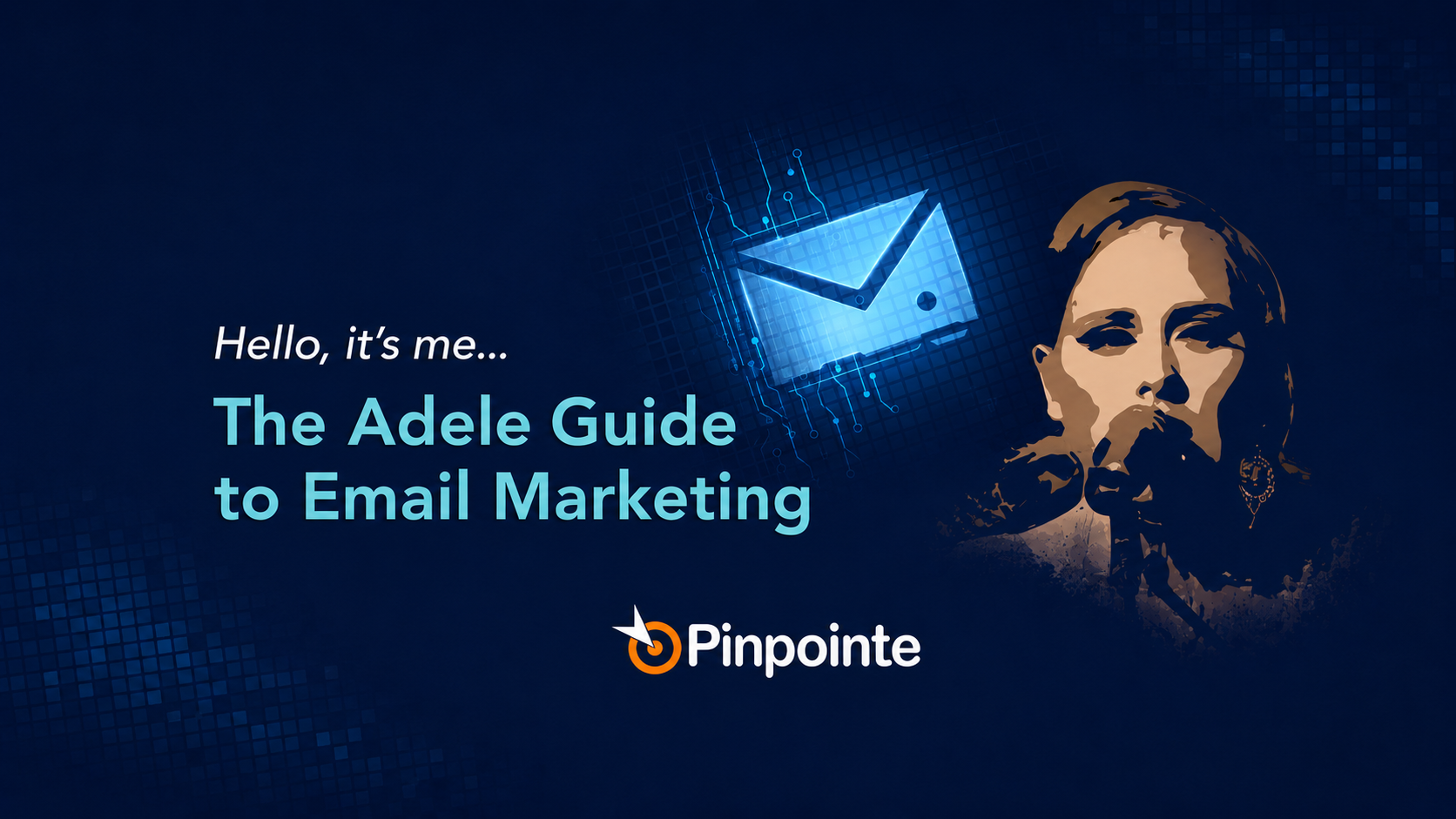
On-Demand Webinar Hello, it's me...The Adele Guide to Email Marketing July 16, 2026 Let's face it, Adele is an a-ma-zing singer, but is she amazing at email? It's... Read More
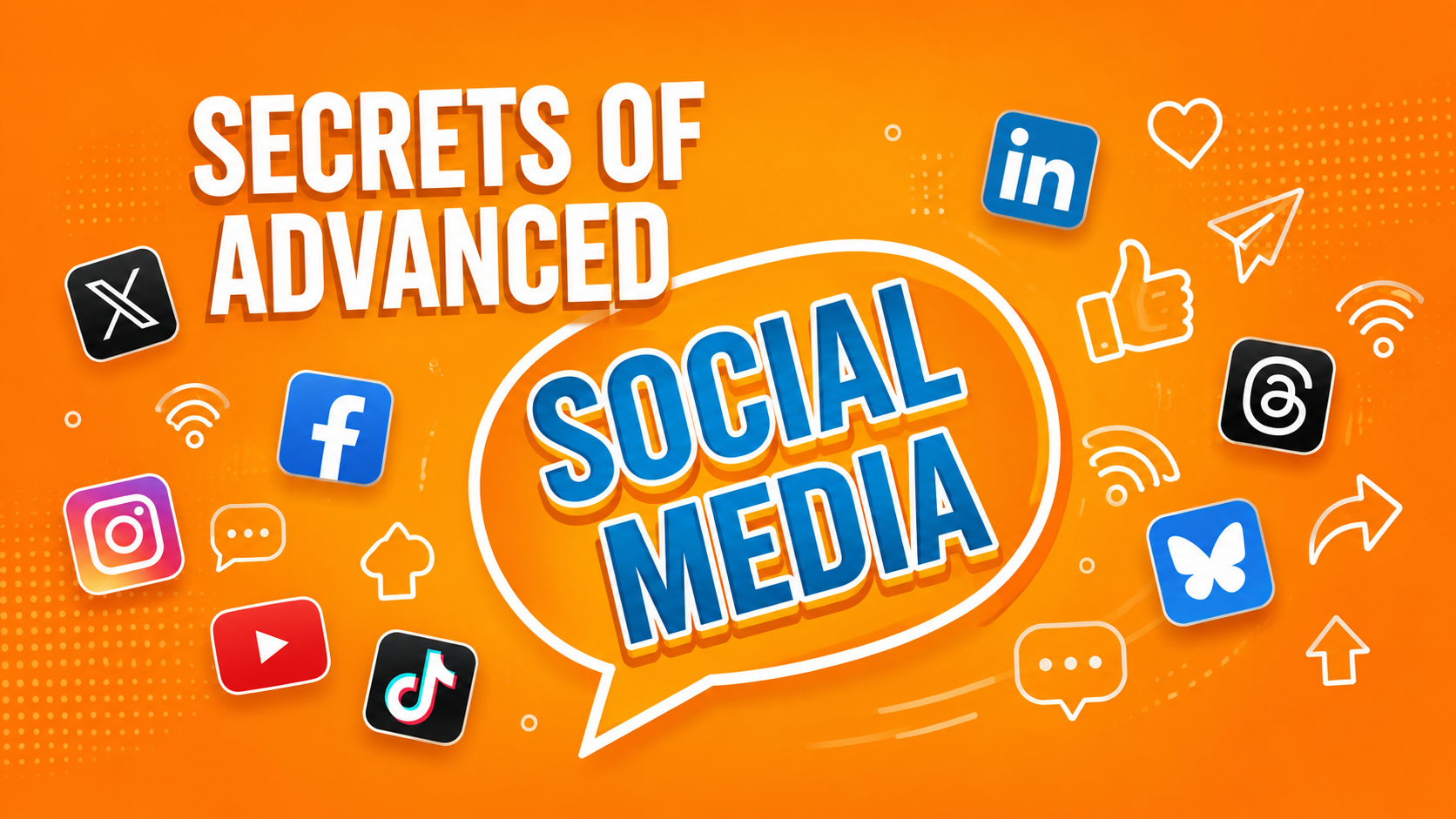
On-Demand Webinar | Secrets of Advanced Social Media Advertising July 16, 2026 It’s no longer enough to just “post a few times a day.” Recent changes in... Read More
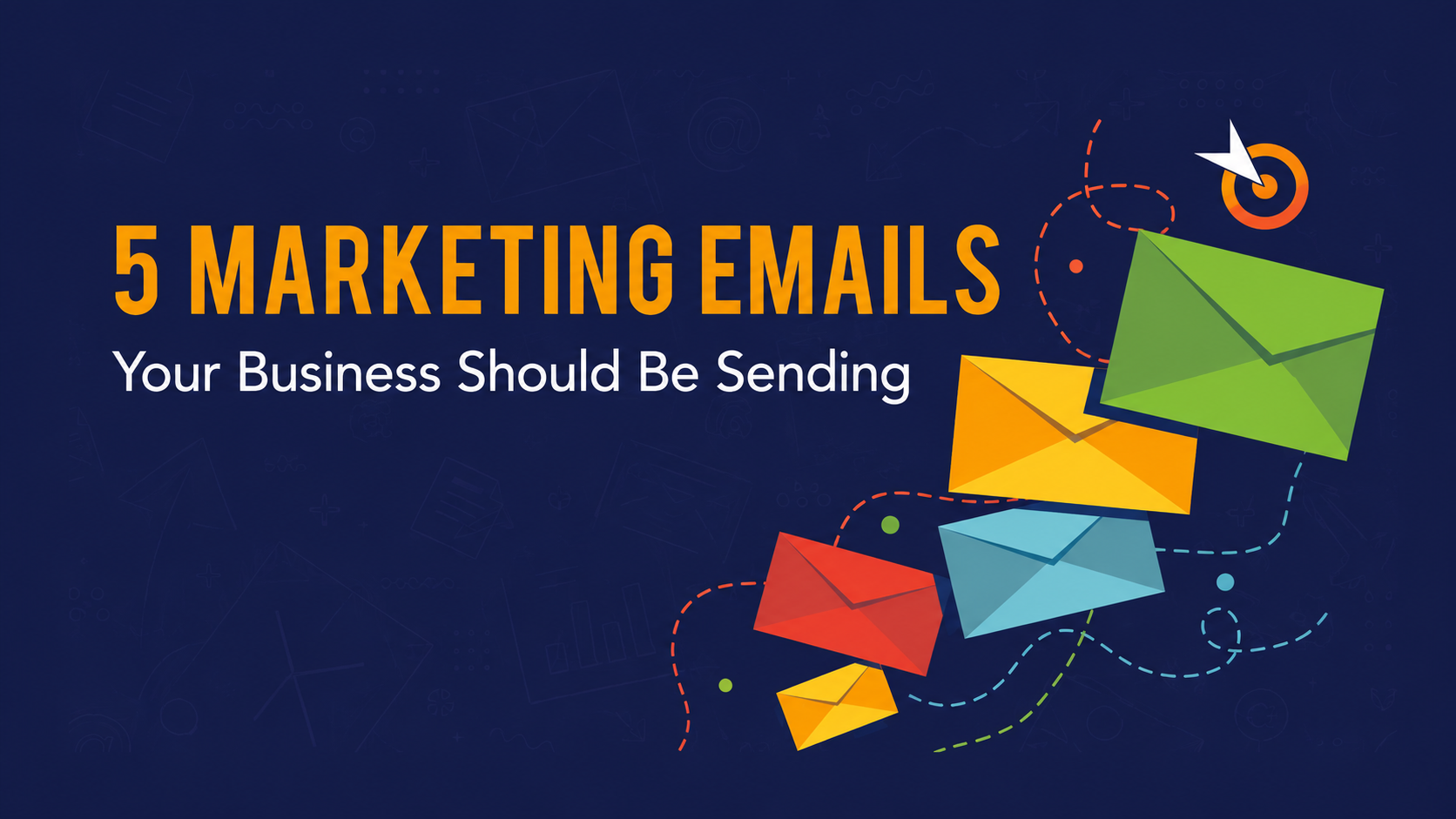
On-Demand Webinar | 5 Marketing Emails Your Business Should Be Sending July 16, 2026 Many businesses send only eNewsletters and promotional emails… Yet, there are... Read More
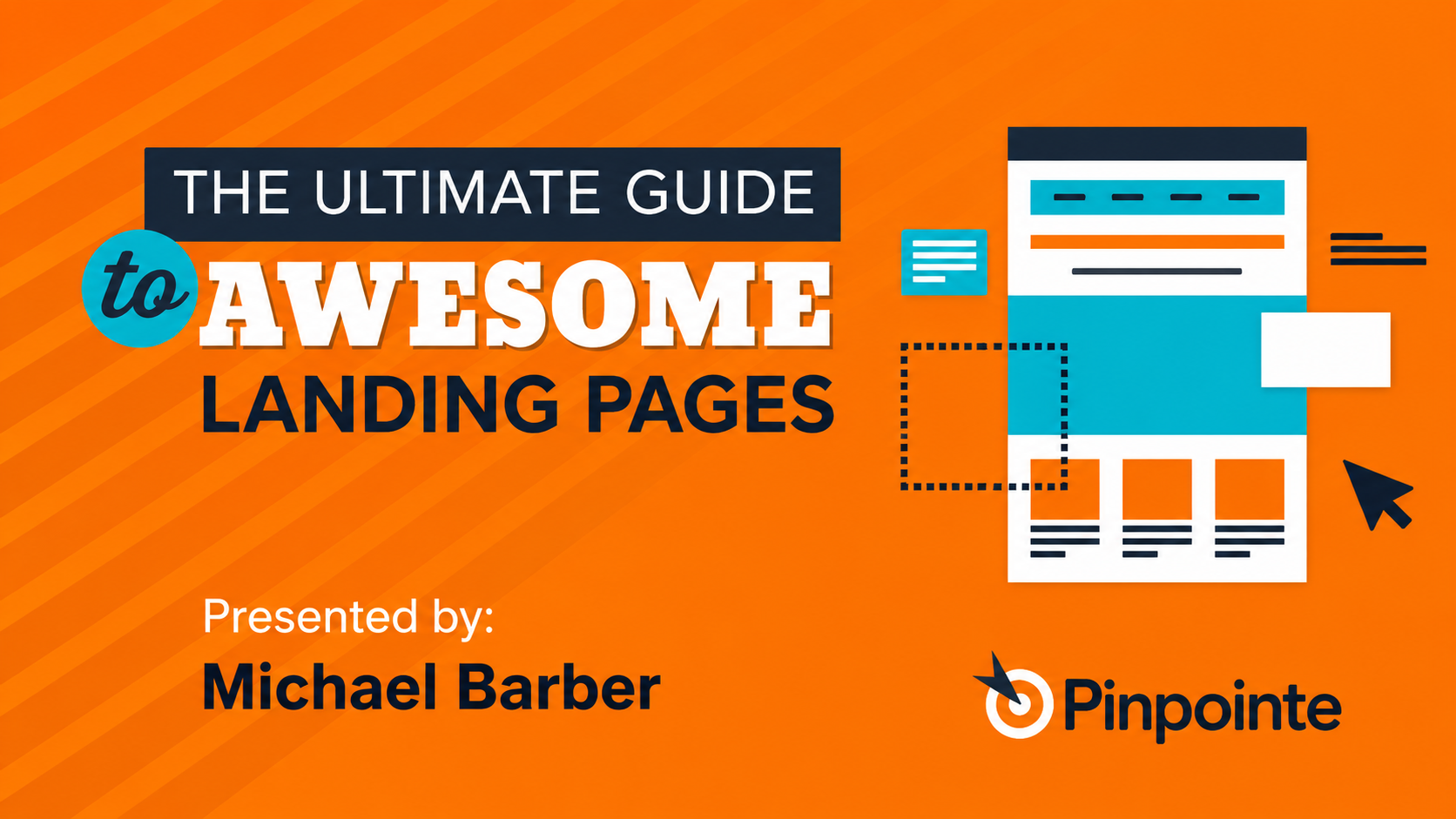
ON-DEMAND WEBINAR: The Ultimate Guide to Awesome Landing Pages July 16, 2026 Most landing pages are just plain lousy… From too many calls-to-action to a... Read More
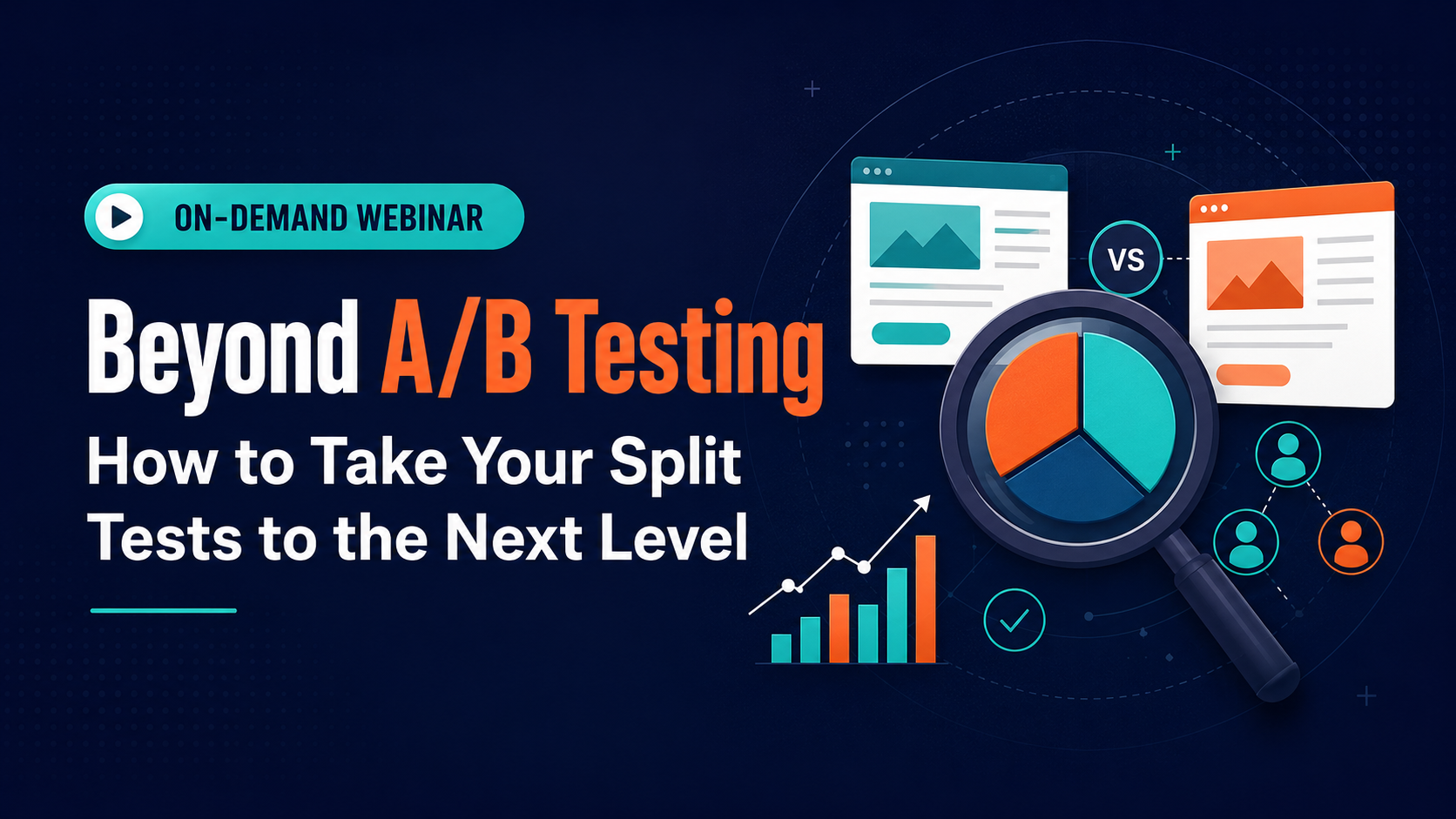
Beyond A/B Testing: How to Take Your Split Tests to the Next Level July 16, 2026 It’s a fact – split testing increases conversions… But in order to take full... Read More
27 Design & Content Tips for Creating Clickable Email Campaigns July 16, 2026 A successful email campaign incorporates a variety of elements that work... Read More
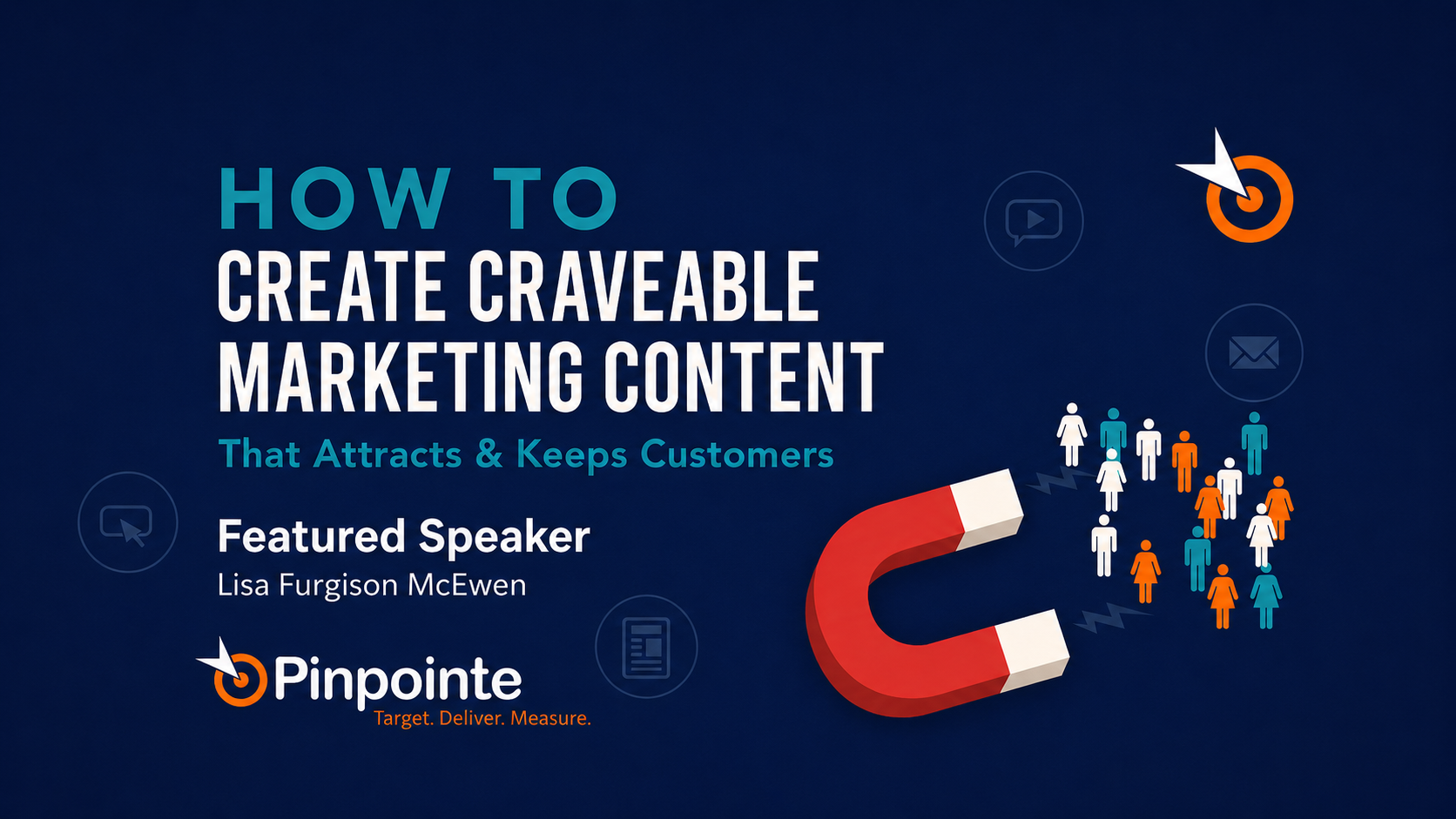
How to Create Marketing Content That Attracts & Keeps Customers July 16, 2026 Are you looking to acquire and retain customers… but aren’t sure which... Read More
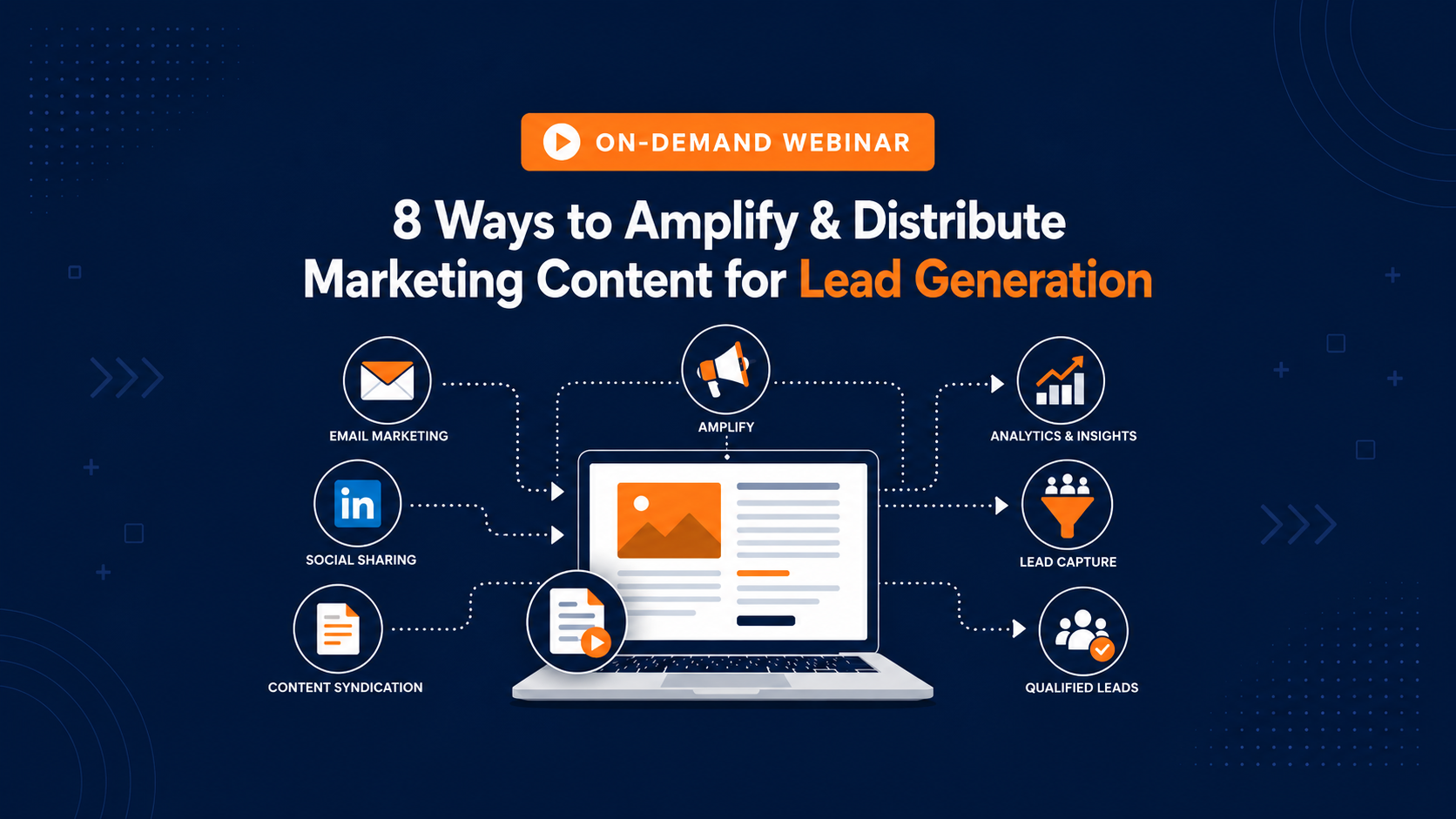
8 Ways to Amplify & Distribute Marketing Content for Lead Generation July 16, 2026 Want to learn how to promote your marketing content to the right audience?... Read More
Why Your Email Campaigns Aren't Getting the Responses You Desire July 16, 2026 Learn What You're Doing Wrong and How to Fix It You’re sending great marketing... Read More
11 Strategies to Grow Your Business with Email & Social Media July 16, 2026 As a marketer, your goal is to find, nurture and retain customers, and they are... Read More
How to Create an eNewsletter That Your Subscribers Will Love July 16, 2026 Want your customers to love & share your email newsletters? Customers respond... Read More


.png?width=2000&height=666&name=Pinpointe%20Blog%20Banner%20(1).png "Pinpointe Blog Banner (1)")










.png)
.png)
.png)
.png)
.png)
![Secrets of Successful Content Marketing [Webinar]](https://blog.pinpointe.com/hubfs/Secrets%20of%20Successful%20B2B%20Lead%20Generation%20%5BWebinar%5D-1.png)
![Secrets of Successful B2B Lead Generation [Webinar]](https://blog.pinpointe.com/hubfs/Secrets%20of%20Successful%20B2B%20Lead%20Generation%20%5BWebinar%5D.png)
![[On-Demand Webinar] How To Create Email Campaigns That Get More Opens, Clicks and Sales](https://blog.pinpointe.com/hubfs/%5BOn-Demand%20Webinar%5D%20How%20To%20Create%20Email%20Campaigns%20That%20Get%20More%20Opens%2c%20Clicks%20and%20Sales.png)
![[On-Demand Webinar] BIG Ideas to Improve Your Email & Digital Marketing ~ Presented by Jeanne Jennings](https://blog.pinpointe.com/hubfs/%5BOn-Demand%20Webinar%5D%20BIG%20Ideas%20to%20Improve%20Your%20Email%20%26%20Digital%20Marketing%20~%20Presented%20by%20Jeanne%20Jennings.png)
![[On-Demand Webinar] How To Create Amazing Mobile Emails](https://blog.pinpointe.com/hubfs/%5BOn-Demand%20Webinar%5D%20How%20To%20Create%20Amazing%20Mobile%20Emails.png)
![[On-Demand Webinar] 17 Secrets Every Email Marketer Should Know](https://blog.pinpointe.com/hubfs/%5BOn-Demand%20Webinar%5D%2017%20Secrets%20Every%20Email%20Marketer%20Should%20Know.png)
.png)