

Data Feeds - Creating Data Feeds
Table of Contents
Data Feeds are a way to add information from an external source and inject it into your campaign in real time.
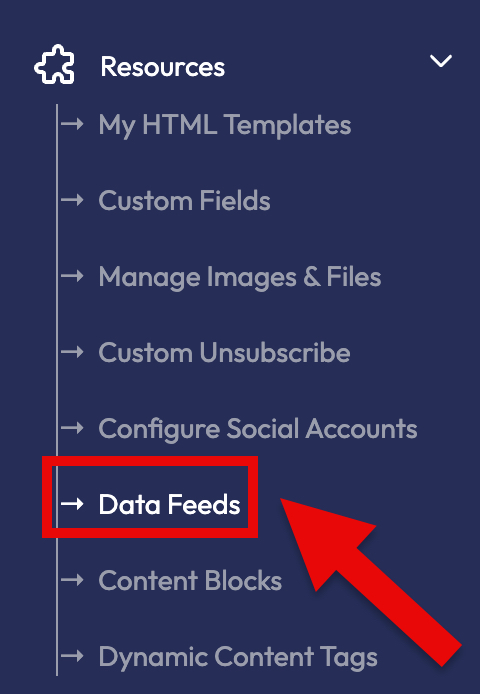
To add a Data Feed, go to Resources -> Data Feeds in the left navigation menu (Fig 1).
Fig 1
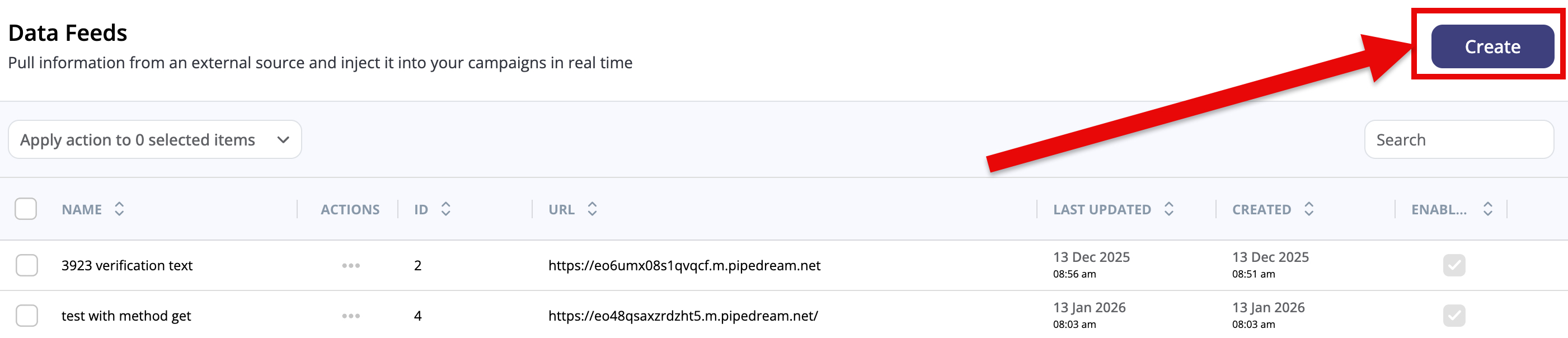
You'll land on the Data Feeds page.
To add a new Data Feed, click the Create button in the upper right corner (Fig 2)
Fig 2
The Add Data Feed page has several fields (Fig 3).
Fig 3
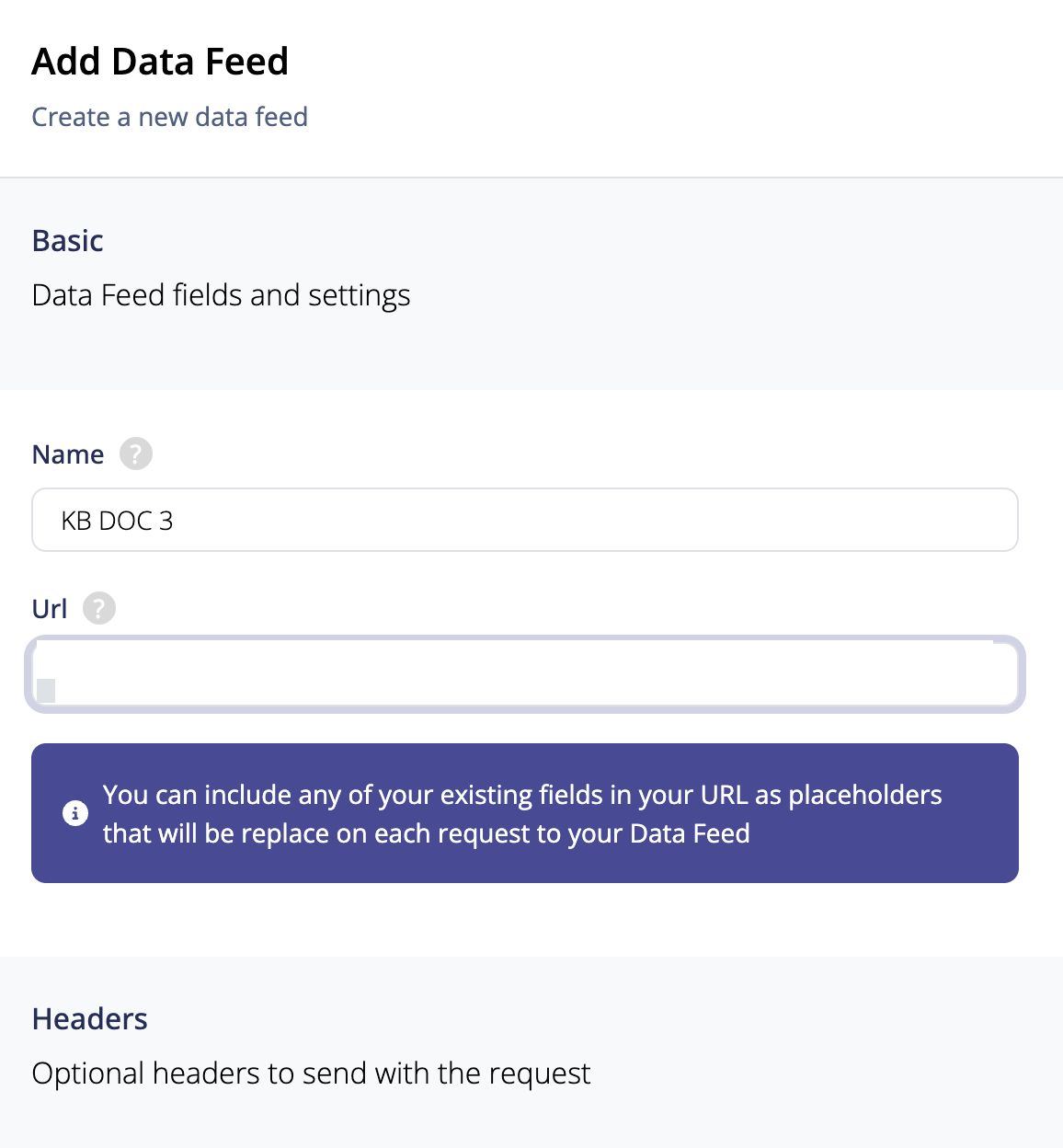
There are only two required fields: Name and URL.
Name: Your name for the Data Feed
URL: The URL for the Data Feed
If you want, you can add Headers that go along with the request (Fig 4).
Fig 4
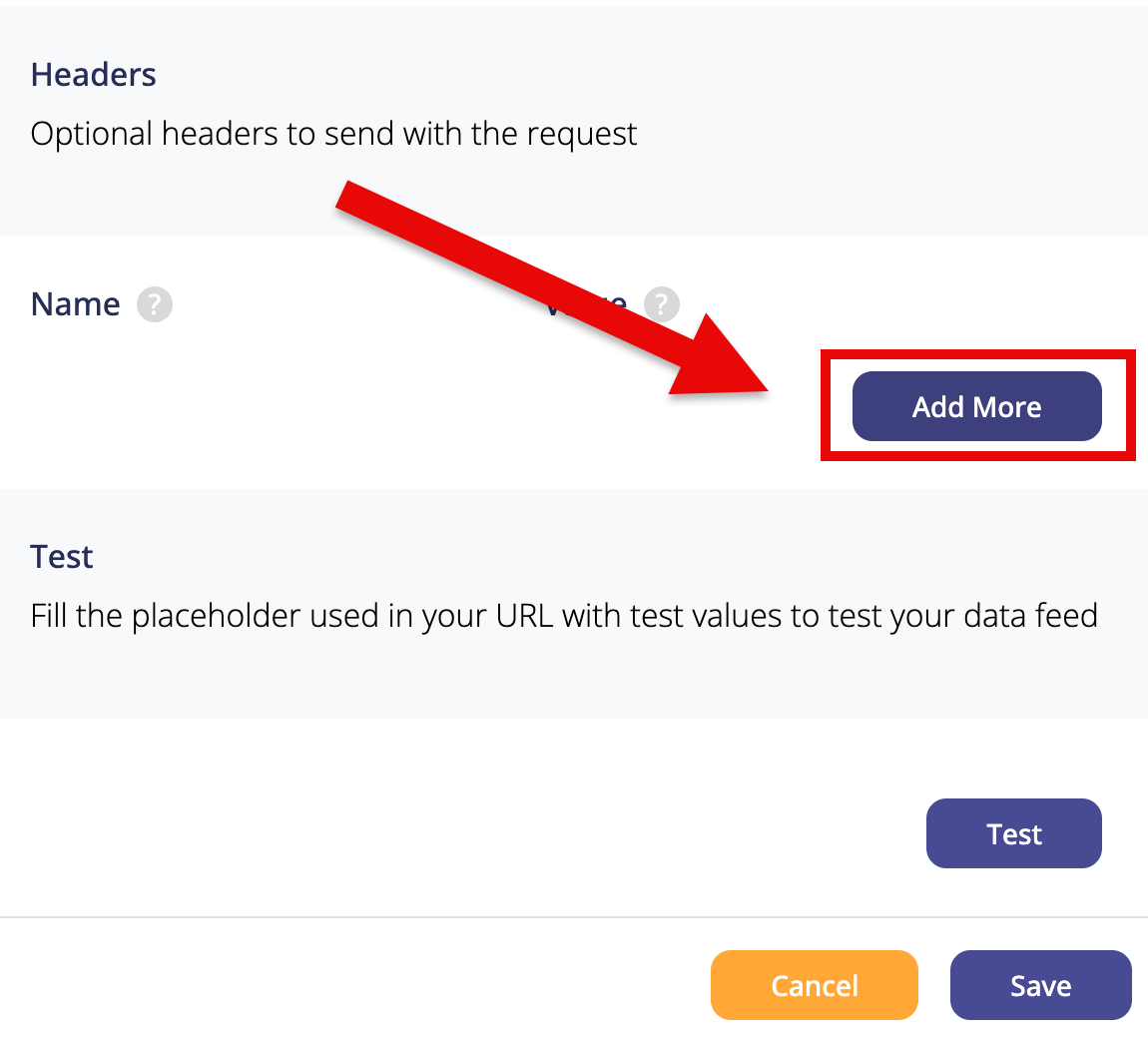
Clicking the Add More button will add a Header.
Headers have two fields: Name and Value. Headers have additional information that is required on your end (token/key pair value, etc.).
You can add more than one Header if you want.
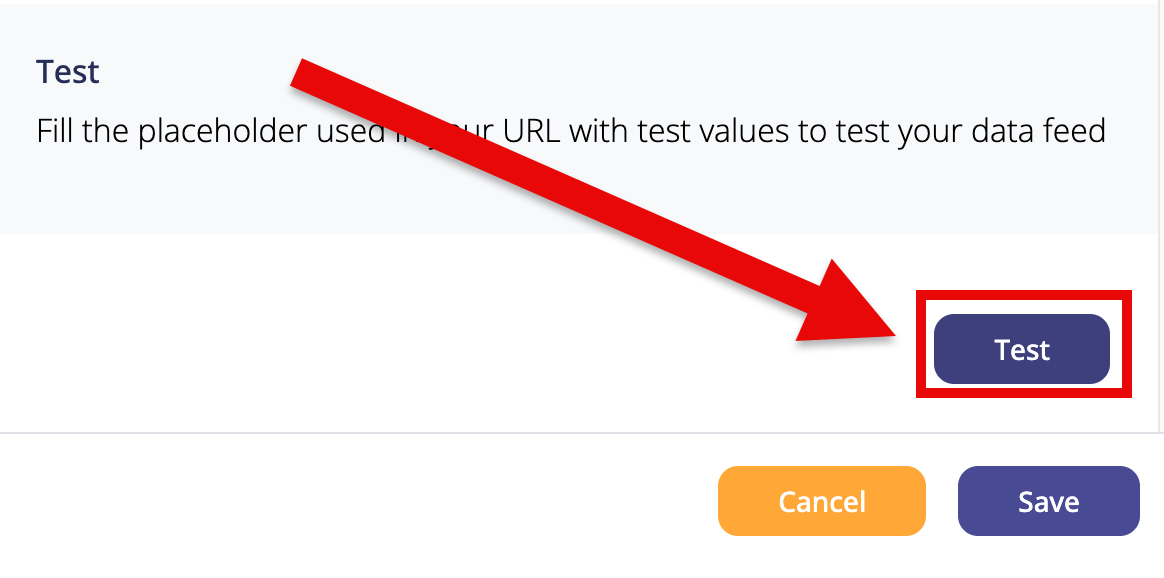
To Test the Data Feed, click the Test button (Fig 5).
Fig 5
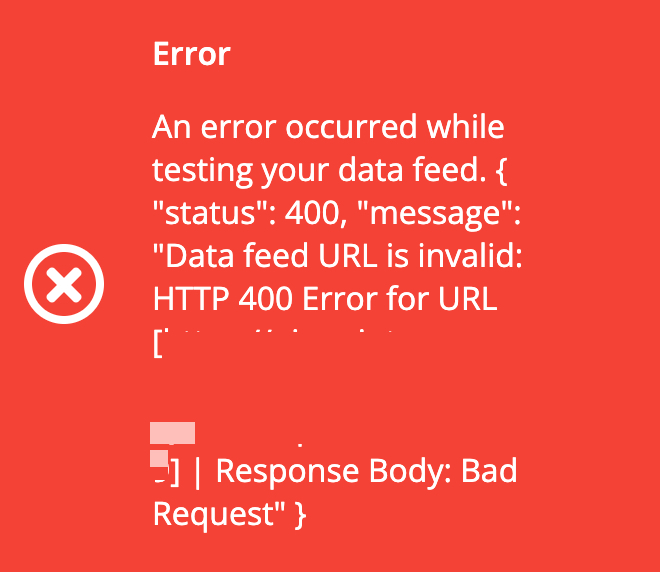
If the Test fails, you'll get a red Test Failed notification (Fig 6).
Fig 6
If the Test succeeds, you'll get a green Test Success notification (Fig 7)
Fig 7

A successful test shows the available fields from your Data Feed.
To save your new Data Feed, click on the Save button (Fig 8).
Fig 8
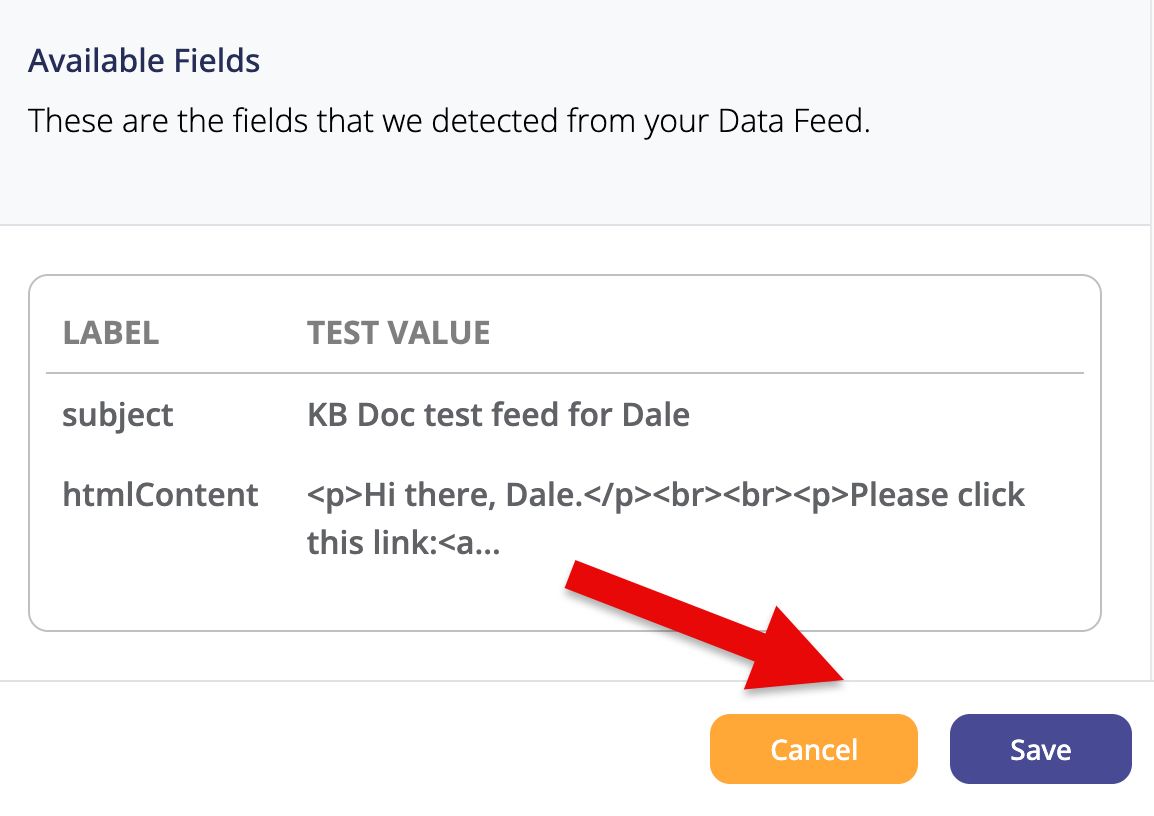
If you click on the Cancel button, your changes will not be saved.
Pinpointe Newsletter
Join the newsletter to receive the latest updates in your inbox.