
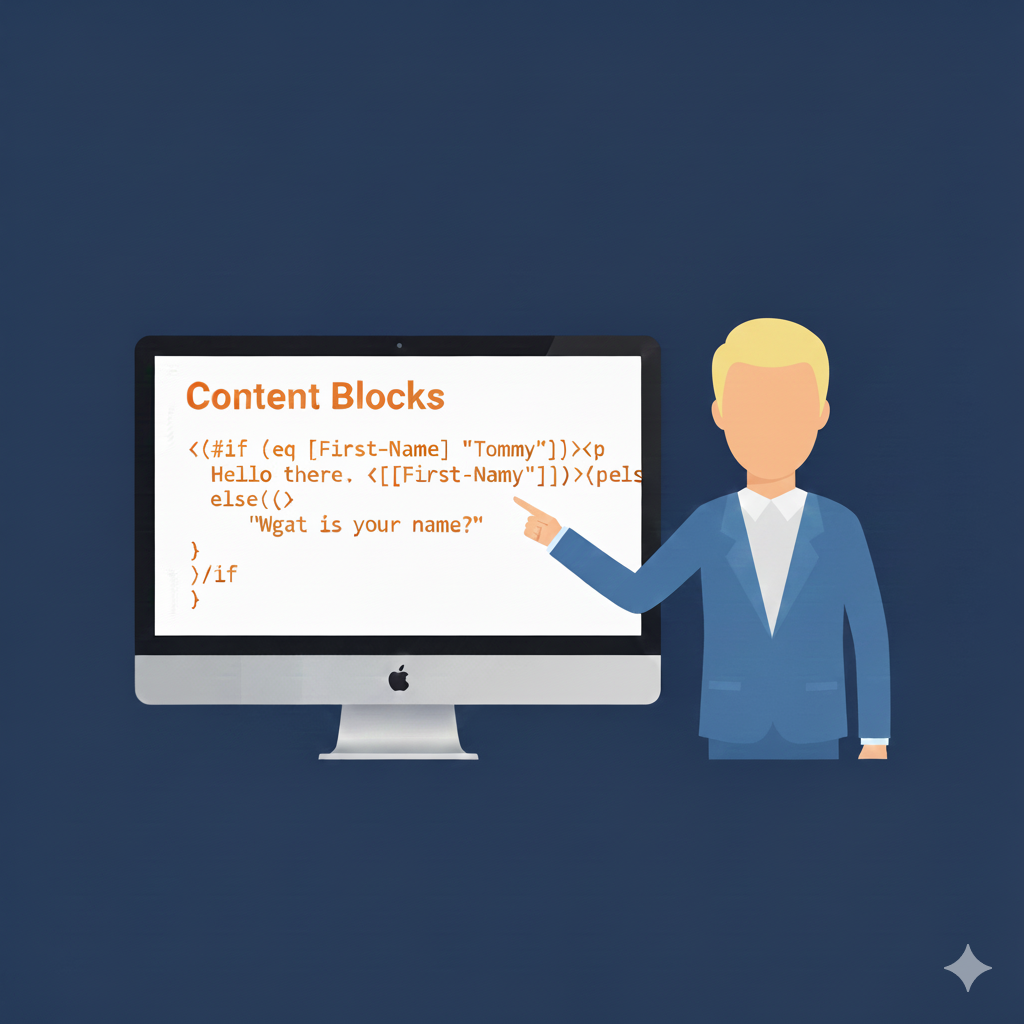
Content Blocks - Creating Content Blocks
Table of Contents
Content Blocks allow you to reuse content, including handlebars, for multiple email campaigns.
Before you can add Content Blocks to your Email Campaign, we'll need to create some Content Blocks.
Creating Content Blocks
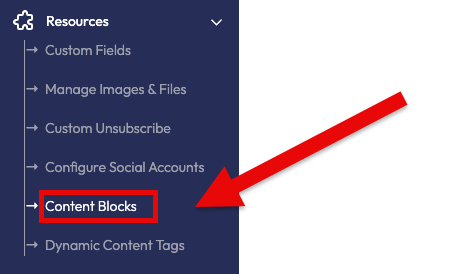
On the left navigation menu, go to Resources -> Content Blocks (Fig 1).
Fig 1
Click on the Create button to add a new Content Block (Fig 2).
Fig 2

On the Add Content Block modal, there are two sections each with their own fields (Fig 3):
Fig 3
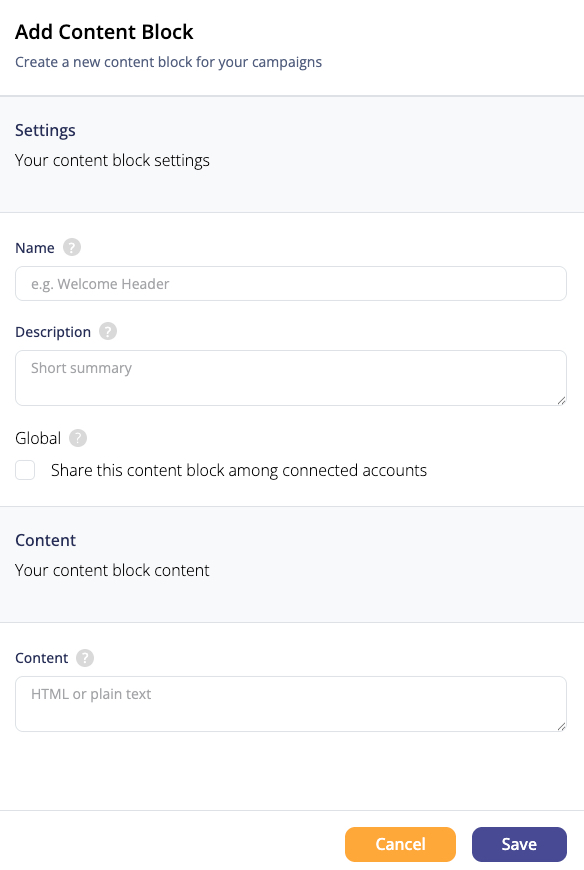
- Settings
- Name
- Name of your content block
- Description
- Description of your content block
- Global
- Toggle if the content block is global or not (can it be shared among connected accounts?)
- Name
- Content
- Content
- The actual content of the content block
- Content
Note: If you are editing a more complex Content Block in the content field that requires double quotes in it, they must be entered and exited with a backslash
Example:
content: "{{#if (eq [First-Name] \"Tommy\")}}<p>Hello there. {{[First-Name]}}</p>{{else}}<p>What is your name?</p>{{/if}}"
Clicking the Cancel button closes the Add Content Block model, but it doesn't save your changes.
Clicking the Save button saves your new Content Block.
Pinpointe Newsletter
Join the newsletter to receive the latest updates in your inbox.